App blocker for kids tablets
Choose an app blocker by rule, lane, and child-view test.
A good app blocker for a kids tablet is not just a blocked list. It separates always-on tools, school apps, reward apps, websites, video, and parent testing so the child sees a clear rule instead of a random denial.
Reviewed on against Google Family Link app controls, Family Link screen-time guidance, Android parental-control guidance, and Nesty's visible child-tablet lane model.

Reviewed app-blocker standard
A useful app blocker blocks the right path and proves it on the child tablet.
Parents searching for an app blocker for a kids tablet need more than a switch. The trustworthy answer starts with the tablet's built-in controls, then checks what the child can actually open.
Reviewed 21 June 2026
This guide was checked against official Google Family Link app-management, screen-time, and Android parental-control sources before recommending an extra layer.
Built-in first
Family Link can block or allow apps, set app limits on supported devices, and manage Google Play approvals. Some apps, system apps, and sync timing still need careful checks.
Nesty fit
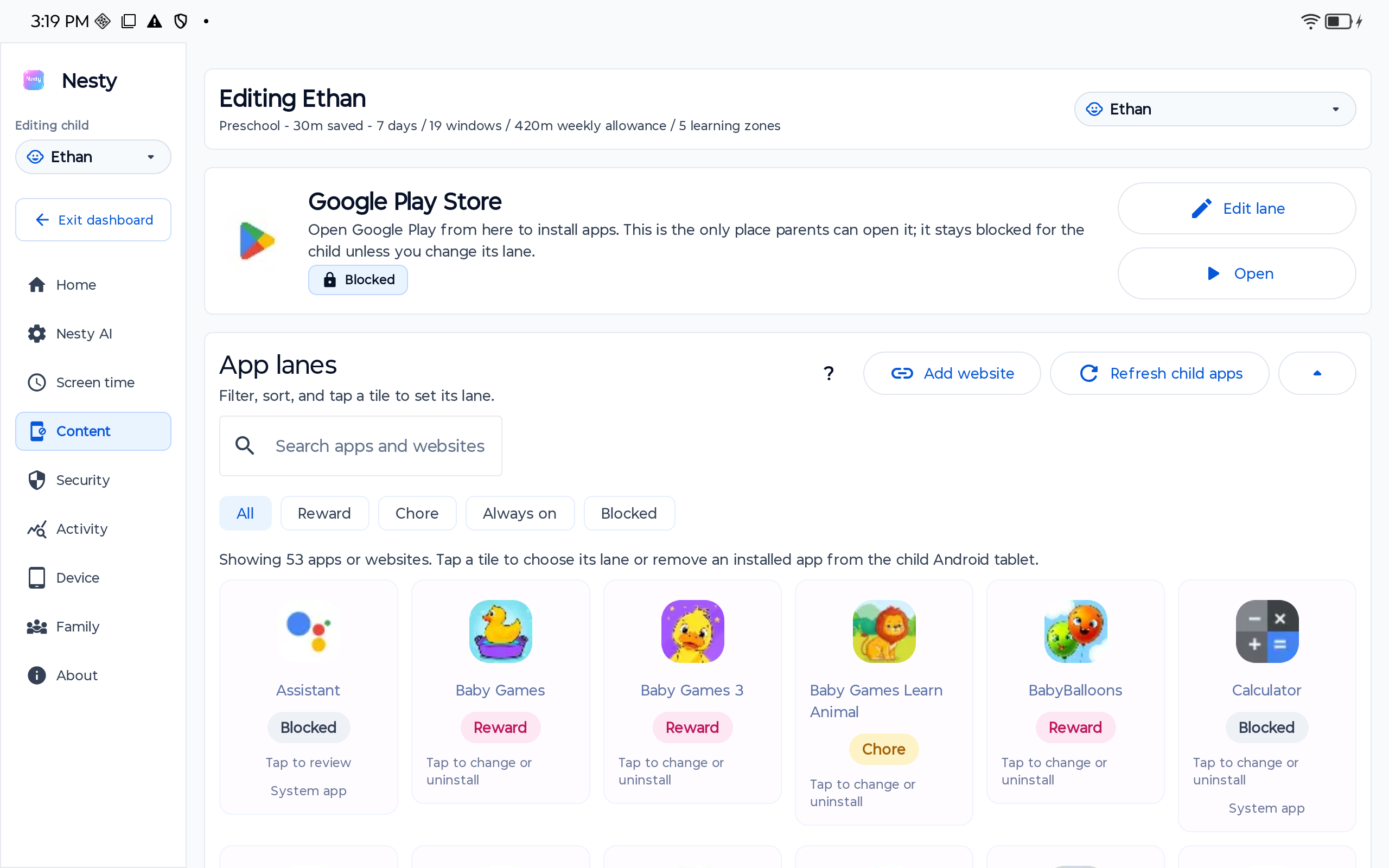
Nesty is for parent-managed child Android tablets that need visible lanes for always-on tools, learning, rewards, KidTube, blocked apps, and blocked web paths.
Data integrity test
After every meaningful change, test always-on, learning, reward, blocked app, blocked website, browser, KidTube, regular YouTube, and app-store paths from the child view.
Rule checklist
The app and website decisions to make before handing over the tablet.
Start with roles, not app names. The same app can be harmless in one family routine and disruptive in another.
Always-on apps
Choose practical tools that should stay available, such as reading, communication, accessibility, or essential family apps.
Learning apps
Keep school, chore, or practice apps separate from entertainment so study time does not open the whole tablet.
Reward apps
Games and fun apps can wait for earned time, weekend rules, or a parent-approved exception.
Blocked apps and sites
Block risky apps, open web paths, app stores, and websites that do not fit the child's age or the family rule.
Start with built-in controls
Use Android and Family Link before adding another layer.
Google Family Link can help parents set individual app limits, keep some apps unlimited, and block apps on supported Android devices and Chromebooks. It can also manage Google Play approvals so children need permission for downloads or purchases.
Google's app-management guidance says block and unblock changes can take about five minutes or happen once the device connects, an active app may get a one-minute warning, and some apps cannot be blocked. Treat those limits as part of the setup, not a surprise.
For websites, Family Link can set Chrome controls such as allowing all sites except blocked ones, trying to block explicit sites, or only allowing approved sites. Google is clear that filters are not perfect, so parents should still review the setup.
Where Nesty fits
Nesty turns the app list into child-facing lanes.
Nesty is built for controlled Android child tablets where parents want the tablet to explain what is available now, what waits, and why.
Video and web boundaries
Treat websites and YouTube as separate rules, not afterthoughts.
App blockers can feel strong while the browser still gives a child a side door. Good tablet rules cover both installed apps and web access.
Use Chrome and web controls where available, then test whether the child can reach blocked or unapproved sites.
Regular YouTube is open-ended. Nesty's KidTube path is for parent-approved channels inside a controlled tablet rule.
App blocks work better when new downloads and purchases also need parent approval.
When a child grows, school needs change, or a new app is installed, re-test the whole path.
Data integrity check
If an app opens when it should not, verify the data before blaming the blocker.
When diagnosing app or website rule issues, check that the right child profile, device, app lane, website list, KidTube setting, schedule, and reward rule reached the tablet. A stale setting or mismatched profile can look like a failed block.
Then test as the child: open an always-on app, a learning app, a reward app outside reward time, a blocked app, a blocked website, the browser, KidTube, regular YouTube, and the app store. The rule is only useful if the tablet behaves the same way the parent dashboard says it should.
FAQ
App and website rule questions.
Short answers for parents comparing built-in controls, app blockers, website filters, and Nesty lanes.
What should an app blocker include?
Always-on tools, learning or chore apps, reward apps, blocked apps, app store access, website rules, video access, and parent testing after each major change.
Can Family Link block apps and websites?
Yes, on supported devices it can help limit or block apps, manage Google Play approvals, and control Chrome website access. Some system apps, filters, and device paths have limitations.
How is KidTube different from YouTube?
KidTube is a parent-approved channel path inside the Nesty child-tablet rule set. Regular YouTube stays blocked by default, and parents should still review video choices.