
Screen time schedules
Choose a screen time app for kids tablets by what the child can see.
A useful kids tablet schedule says what opens during school time, what waits for reward time, what stays available, and what happens at bedtime. The rule should be clear to the parent and visible to the child.
Reviewed on . This guide checks Google Family Link screen-time controls, Family Link schedules, Apple Screen Time, and Nesty's Android child-tablet behavior before recommending an extra layer.
Reviewed screen-time standard
A good screen time app should make the rule visible, not just measurable.
Parents comparing screen time apps need more than a timer. They need to know which controls are already built into the tablet, whether the rule reaches the child device, and whether the child can understand what happens next.
Reviewed
21 June 2026
Checked against current Google Family Link screen-time and schedule help, Apple Screen Time guidance, and Nesty's visible Android child-tablet schedule behavior.
Built-in first
Use platform controls before buying more
Family Link covers Android daily limits, downtime, school time, app limits, allowed apps, lock or unlock, and bonus time. Apple Screen Time is the first layer for iPhone and iPad.
Nesty fit
Android child-tablet routines
Nesty fits when the device is a supported child Android tablet that needs visible app lanes, KidTube, chores, rewards, quiet hours, and a parent-checkable setup path.
Data integrity
Test the lock from the child side
After each schedule change, verify the parent dashboard, tablet clock, active app lane, bonus or reward state, and child lock screen agree before trusting the rule.
Schedule checklist
The parts of a screen time schedule that parents actually use.
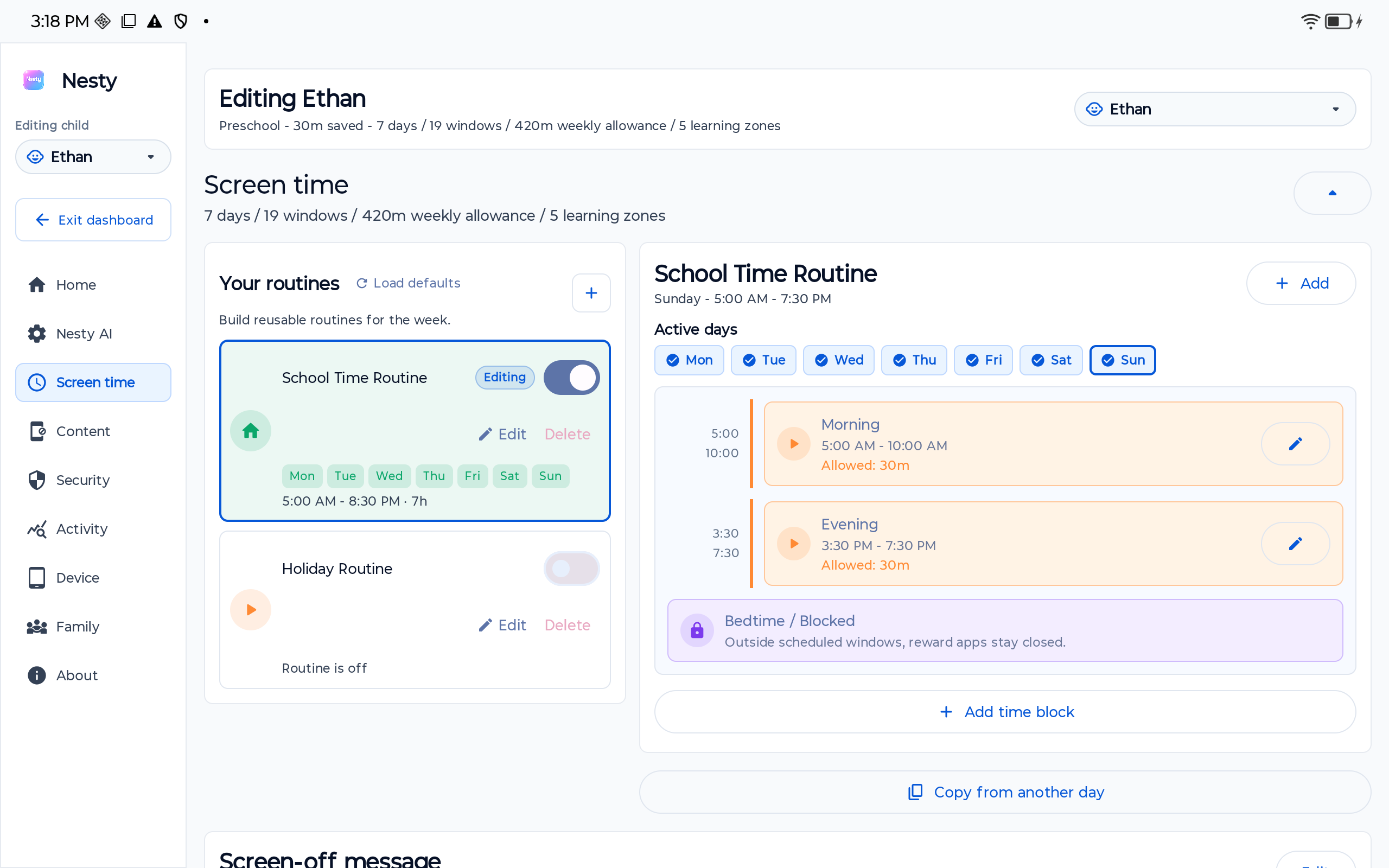
Think in windows, lanes, and exceptions. A schedule is easier to keep when every app has a clear role.
Daily limits
Set the overall amount of tablet time for an ordinary day, then decide whether weekends and holidays need separate rules.
School or focus time
Keep distracting apps closed during homework, school hours, or focused family time, while leaving essential tools available.
Downtime and bedtime
Use predictable quiet windows so the tablet stops cleanly instead of becoming a nightly negotiation.
Reward windows
Separate earned games and entertainment from learning tools so reward time feels clear without opening everything all day.
Start with built-in tools
Android and Family Link already cover many scheduling basics.
Google Family Link can help parents manage screen time, daily limits, downtime, school-time schedules, app limits, allowed apps, device lock or unlock, and bonus time. Android's own parental controls are also a sensible first stop on supported devices.
If those built-in controls create a calm enough routine, that may be all the family needs. Add Nesty when the problem is more specific: one Android child tablet should show visible rules, separate learning and reward lanes, and explain why time is on or off. For iPad, start with Apple Screen Time rather than assuming Nesty's protected child-tablet mode applies.
Where Nesty fits
Scheduling works better when the tablet shows the rule.
Nesty is built for the everyday pattern parents describe: learning first, fun later, quiet hours at night, and a child tablet that explains what is available now.
A practical setup path
Build the week before you fine-tune the minutes.
Minute-perfect rules usually fail if the weekly pattern is unclear. Start with the main windows, then adjust after real use.
Decide when the tablet is for school, chores, quiet time, always-on tools, and reward entertainment.
Put each app into the right role: always available, chore or learning, KidTube, reward, blocked, or not installed.
Plan what happens during travel, sickness, holidays, homework emergencies, and shared-family tablet use.
Confirm that the rules shown in the parent app match what the child tablet actually allows.
Data integrity check
If a schedule looks wrong, verify the data before blaming the rule.
When diagnosing screen time issues, check whether the right child profile, device, schedule, app lanes, reward rules, and KidTube settings reached the tablet. A stale or mismatched setting can look like a broken control.
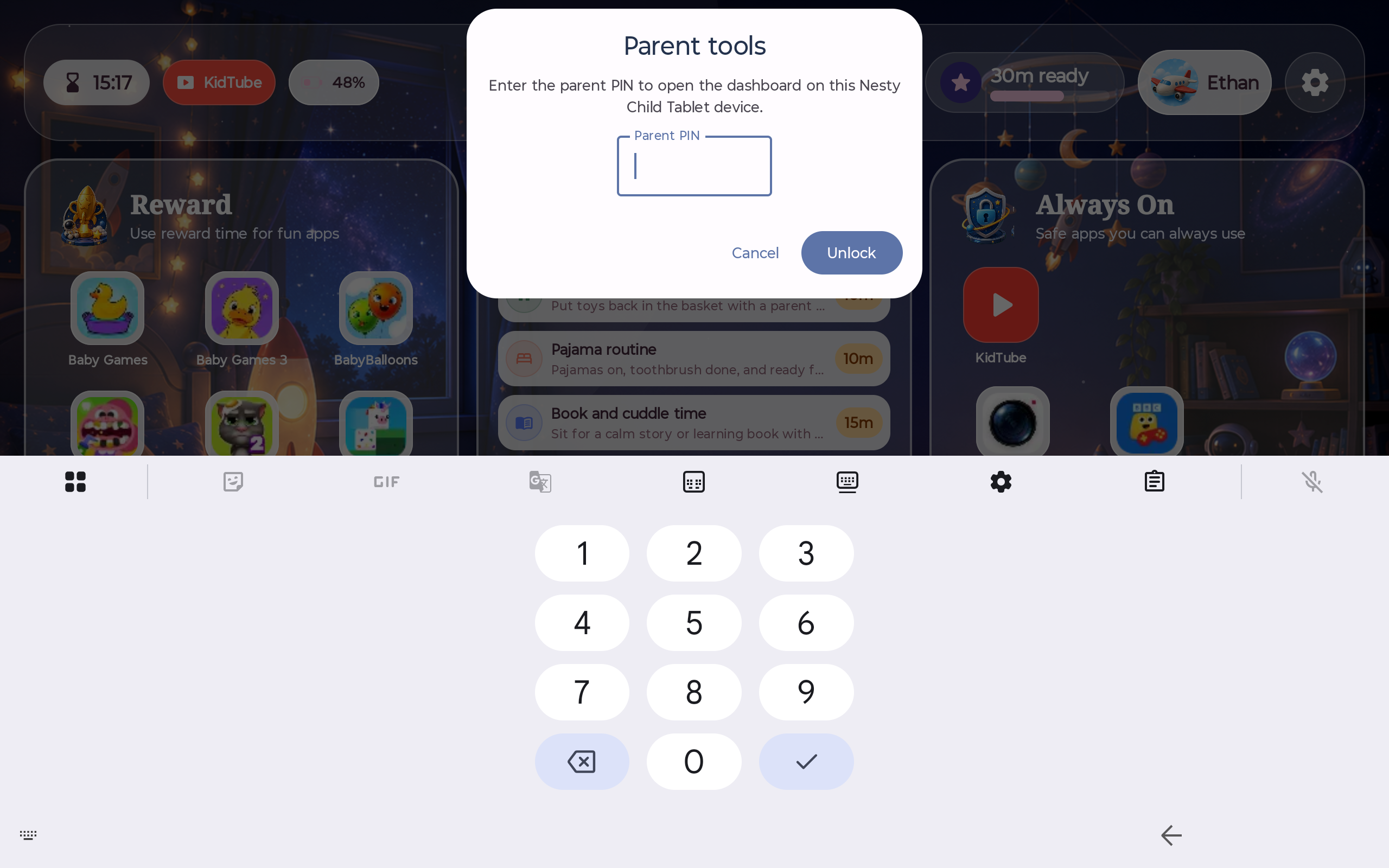
Parents should also test the tablet from the child's side after every major schedule change: open allowed apps, try reward apps, check KidTube, try the browser, and confirm the screen lock appears when time is off.
FAQ
Screen time schedule questions.
Short answers for parents setting tablet routines that need to survive real family life.
What should a tablet schedule include?
Daily limits, focus windows, bedtime or downtime, always-available apps, reward windows, exceptions, and a clear child-facing message when time is off.
Should I use Family Link first?
Yes. Built-in Android and Google Family Link controls are a sensible first stop. Nesty adds a visible controlled child-tablet experience when the family needs that extra layer.
How should reward time work?
Keep reward apps separate from learning and always-on tools. That way school time, quiet time, and earned entertainment do not blur into one open tablet session.