Set up a child Android tablet in layers you can test.
Check compatibility and back up first. Create the family in Nesty Parent, then provision the child tablet before Google sign-in. Review app lanes, screen time and KidTube, and test the tablet before handover.
- Check and back up first
- Reset check
- Child view
- Data match

Short answer
The right setup order matters more than one perfect control.
For Nesty protected setup, start with a new or backed-up reset tablet. Use the welcome-screen QR route before adding Google accounts, then verify the rules from the child view.
Layer 1
Account and recovery.
Confirm the child Google Account, parent account, recovery access, purchase approvals, and whether another profile is still on the tablet.
Layer 2
Built-in controls.
Decide which controls your family needs before installing. For Nesty protected setup, provision the tablet from the first welcome screen before Google sign-in.
Layer 3
Child-tablet routine.
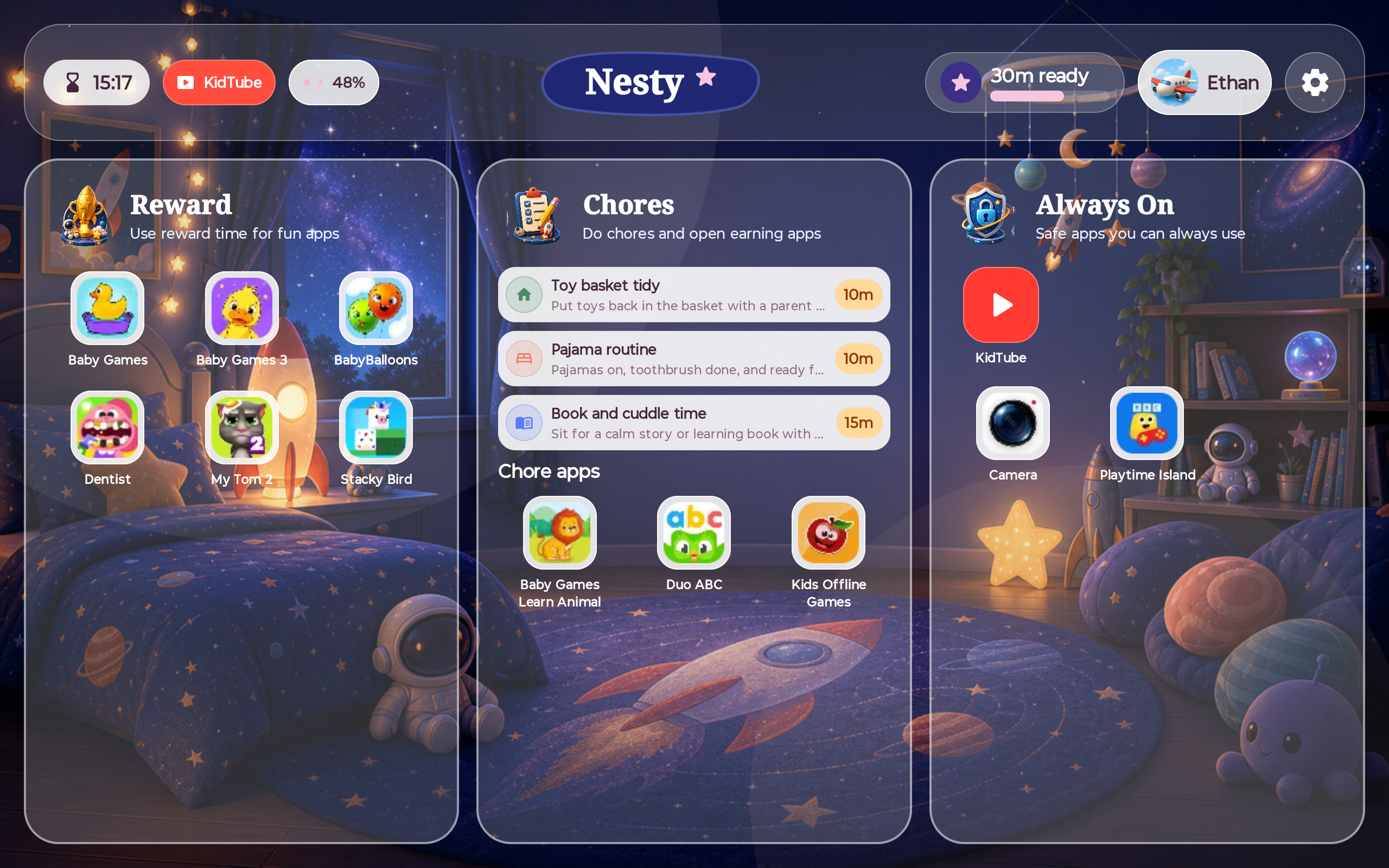
Add Nesty when the tablet needs visible app lanes, KidTube, chores, rewards, quiet hours, and a parent-managed setup state.
Layer 4
Test the exact device.
Open the tablet like the child will. Check launcher, settings, app store, browser, video, reboot behavior, and the parent dashboard.
Other Android setup routes
Choose the setup route before adding accounts.
For a tablet using built-in controls without Nesty protected setup, check whether it has Android's newer on-device parental controls in settings, expanding to devices that update to Android 17, or whether the setup should rely on Family Link from the parent device. Google says these layers can cover daily limits, downtime, app limits, blocked apps, web content filters, app store filters, School Time, selected unlimited apps, and account supervision where supported.
If the tablet supports Google Kids Space, treat that as a device-specific kids mode on select Android tablets, not a universal Android setup. If the tablet is older or previously used, check whether a reset is appropriate before you build rules on top of stale accounts or apps.
Setup path
The Nesty protected tablet setup sequence.
Use Nesty Parent on an Android 14+ parent phone and a compatible Android 14+ child tablet. The QR route starts before Google sign-in; adding an account first can block protected setup.
Before and after Nesty
Nesty setup should be tested against the tablet, not just the parent dashboard.
The parent dashboard is the control surface. The child tablet is where the rule has to make sense.
| Setup moment | Parent should check | Child tablet should show |
|---|---|---|
| After account setup | Correct child profile, parent account, purchase approvals, app install approval, and recovery access. | The child cannot freely add accounts, install unapproved apps, or reach a payment path without the parent layer intervening. |
| After schedules | Daily time, bedtime, school-time, quiet hours, and any always-on apps are set for the right child. | The tablet explains when time is available, when it is paused, and which tools still work. |
| After app lanes | Learning, chore, reward, blocked, browser, app-store, and video paths are separated deliberately. | Opening each app path matches the parent rule, including blocked apps and video launchers. |
| After restart or sync | Parent dashboard, selected child, tablet sync time, and setup status still agree. | The same rules survive reboot, network changes, and a normal child opening the tablet again. |
Where Nesty fits
Use Nesty when the Android tablet needs a visible family routine.
Nesty is not a replacement for every Google, Amazon, or manufacturer control. It is for a parent-managed Android child tablet where the routine itself matters: learning apps, chore apps, reward apps, always-on tools, approved KidTube channels, quiet hours, and clear on-screen endings.
The strongest setup keeps built-in account controls and Nesty's child-tablet experience aligned, then tests the result from both the parent view and the child view.
Final handover test
Before the child gets the tablet, act like the child for ten minutes.
A useful setup is one that survives ordinary use, not only the settings screen.
Check that the first screen matches the child experience you intended.
Open always-on, learning, chore, reward, and KidTube paths during the right time window.
Test app store, browser, regular YouTube, settings, old apps, and anything already installed.
Restart the tablet, reconnect if needed, then compare the child view with the parent dashboard.
FAQ
Child Android tablet setup questions.
Short answers for parents setting up a tablet before handing it over.
What should I set up first?
For Nesty protected setup, check both devices and back up first. Set up Nesty Parent, then provision the child tablet from its first welcome screen before Google sign-in. Follow the separate built-in-controls route only if you are not installing Nesty protected mode.
Do I need to factory reset the tablet?
Nesty protected QR setup requires a new or reset tablet at the first Android welcome screen. An already configured tablet needs a reset after you back up its local data and check account recovery. A tablet already running Nesty can normally update without another reset.
How do I know setup worked?
Use the tablet like the child would: open allowed apps, blocked apps, settings, store, browser, and video paths, then compare the result with the parent dashboard.