Android tablet parental controls
Set up Android tablet parental controls parents can verify.
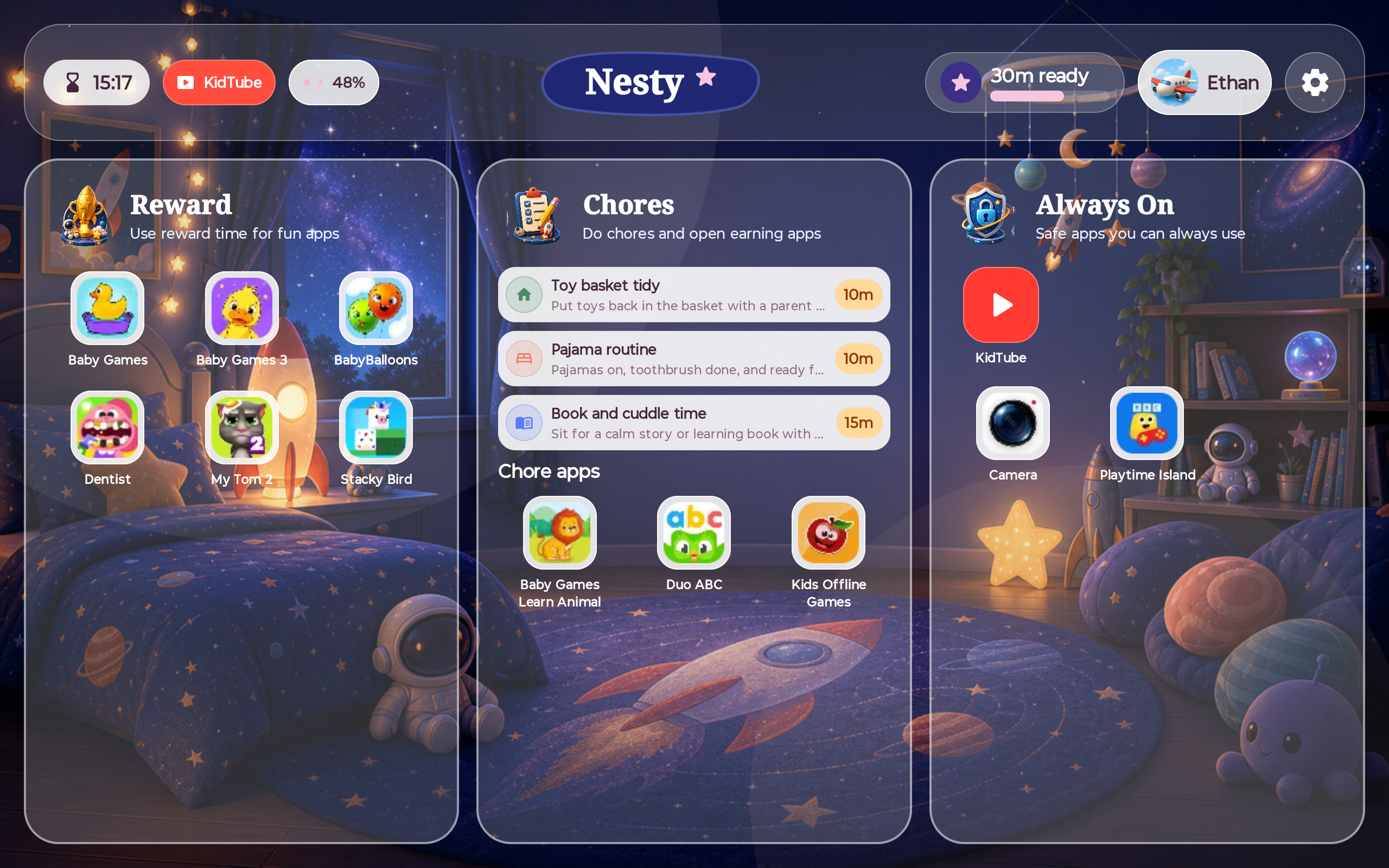
Android gives parents useful starting points. Nesty adds a controlled child-tablet experience for families who want routines, app lanes, KidTube, chores, rewards, and quiet endings on the screen itself.
Reviewed on . This guide checks current Android Help, Android's public explainer, and Google Family Link before explaining where Nesty fits.
Reviewed setup standard
Start with the official Android layer, then test the actual tablet.
Parents looking for an Android tablet parental control app should know what Google controls can already do, which controls the device actually supports, and what extra problem an app like Nesty is meant to solve.
Reviewed
21 June 2026
Checked against Android Help, Android's parental-controls explainer, Google Family Link, and Nesty's visible Android child-tablet setup behavior.
Source check
Use the live device as proof
Google source pages can differ on version wording, so this guide uses the current Help Center requirement and asks parents to confirm controls in Settings on the actual tablet.
Fit boundary
Android child tablets
Nesty is described here as a controlled child Android tablet layer, not a replacement for every Android phone, iPad, Fire tablet, or Google account supervision tool.
Data integrity
Parent view and tablet view must agree
Before relying on any rule, check the child screen, app lanes, schedule state, and parent dashboard agree after setup or sync changes.
Parent checklist
What a child tablet needs before it feels calm.
The strongest setup is not one setting. It is a set of clear boundaries that parents can understand and children can see.
Screen time rules
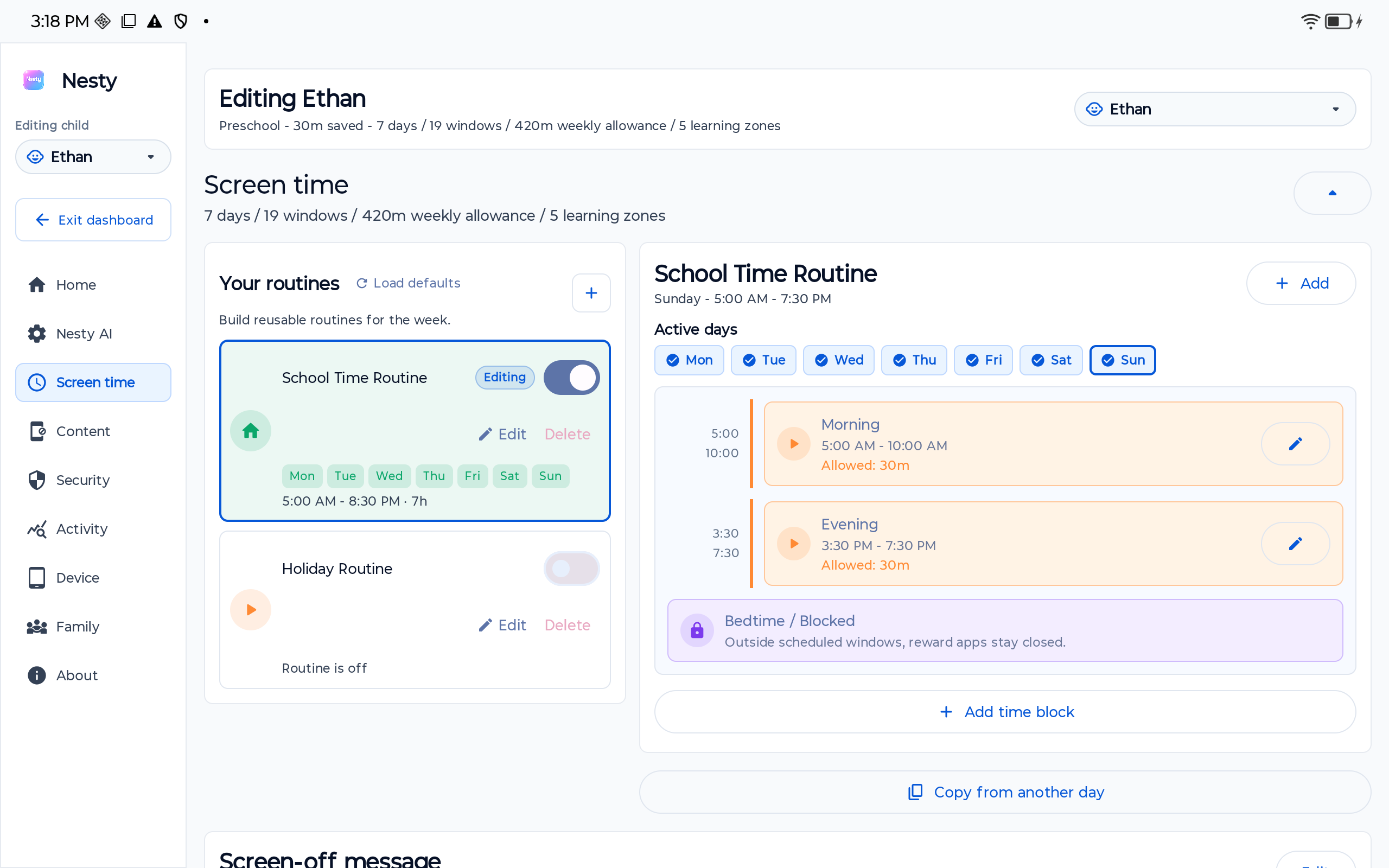
Daily routines, bedtime, school time, and reward time should be predictable. The child should see why the tablet is available or paused.
App and website access
Parents need simple ways to keep learning tools open, hold back games until the right time, and block websites that do not fit the family rule.
Video boundaries
Video should not become an open-ended rabbit hole. Nesty uses KidTube for parent-approved channels while regular YouTube stays blocked by default.
Recovery and parent control
The parent needs a way back in: setup help, recovery guidance, account deletion, privacy information, and a clear install path.
Built-in controls
Start with the tools Android already gives you.
Google describes two Android control layers: on-device parental controls in Android Settings and Family Link for parent-managed account and device supervision. Current Android Help lists Android 17 or later as the requirement for on-device controls, while Android's public explainer describes the newer controls as part of the Android 16 update. Treat that difference as a reason to check the live tablet, not a reason to guess.
Before you add another product, confirm which layer your specific tablet actually supports in Settings and Family Link. Android version, manufacturer setup, Google account state, child profile support, browser versions, and app store settings can change what a parent can enforce.
For many families, built-in controls are enough. Nesty is for the more specific Android tablet problem: a child tablet that should behave like a controlled family device, with visible rules, lanes, KidTube, chores, rewards, quiet hours, and a setup path parents can follow.
Where Nesty fits
A controlled Android tablet, not just another hidden setting.
Nesty is built around the daily family pattern: learning first, fun later, quiet hours at night, and a child screen that shows what is allowed right now.
Setup path
Before you install, check the fit.
Nesty is strongest when the family wants one child Android tablet to operate as a controlled tablet experience.
Create the family, add the child profile, and set the first rules from the parent side.
Use a reset Android tablet for the current controlled setup path. A no-reset path is still in progress.
Set school time, quiet hours, app lanes, KidTube visibility, chores, and reward time.
Use the setup site for downloads, troubleshooting, PC Link, privacy, terms, and account deletion.
FAQ
Android tablet parental control questions.
Short answers for parents comparing built-in controls with a controlled Nesty tablet setup.
What should Android tablet parental controls include?
A useful setup should cover screen time, app access, web rules, video boundaries, bedtime or quiet hours, parent recovery, and a clear message on the tablet when a rule is active.
Do I still need Google controls?
They can still be useful for account, app, purchase, and device settings. Nesty focuses on the controlled child-tablet experience and visible family routines.
Does this work the same way on iPad?
No. The protected child-tablet setup described here is for Android tablets.