Kids tablet parental controls that parents can actually check.
Start with the controls the tablet already gives you. Then add clearer app lanes, schedules, KidTube, chores, and rewards only when the family routine needs them.
- Screen time
- App rules
- Video paths
- Setup checks
Short answer
A good kids tablet setup has fewer open paths, clearer rules, and a way to recover.
Kids tablet parental controls should make the device more predictable. They should not pretend a tablet can become perfectly safe or that one app can replace parent judgement.
First layer
Use built-in controls first.
Google Family Link, Google Kids Space on supported tablets, and Amazon Parent Dashboard on Fire devices can already handle important parts of the setup.
Daily rules
Make time visible.
Screen time works better when the child can tell whether it is school time, reward time, downtime, or always-available time.
App paths
Separate learning from games.
Approved apps, blocked apps, purchase approvals, app stores, browsers, and video apps should be checked as separate routes.
Reality check
Test the tablet itself.
Android version, manufacturer changes, account state, Kids Space, system apps, and reboot behavior can all affect what the child sees.
Built-in controls first
Before adding another app, check what your tablet already supports.
Google now describes built-in Android parental controls in settings as an on-device layer that is expanding to devices that update to Android 17. That layer can cover daily limits, downtime, app limits or blocks, web content filters, and app store filters. Family Link remains the broader parent-managed layer for account supervision, School Time and Downtime schedules, app approvals, Chrome website controls, YouTube settings, Google Play controls, and location features where supported.
Google Kids Space is a kids mode available on select Android tablets and requires a child Google Account, with parental controls handled through Family Link on a supported parent device. For Amazon Fire tablets, Amazon Parent Dashboard can manage child profiles, screen time, content, and category restrictions inside the Amazon ecosystem.
Checklist
What to check before handing over a kids tablet.
This is the practical checklist: not every tablet needs every item, but every family should know which paths are open.
Tablet fit
Different tablet ecosystems need different parental-control choices.
A parent shopping for kids tablet parental controls may be comparing an Android tablet, a Fire tablet, a tablet with Google Kids Space, or a hand-me-down device. The right answer changes with the device.
| Tablet situation | Start here | When Nesty may fit |
|---|---|---|
| Standard Android tablet | Use Google Family Link and Android settings for account supervision, app limits, downtime, purchase approvals, and Google service controls. | When the tablet needs a clearer child-facing routine with app lanes, KidTube, chores, rewards, schedules, and parent-dashboard agreement. |
| Android tablet with Google Kids Space | Check Kids Space device support, child account setup, Family Link controls, app/content recommendations, and whether the child can reach settings you did not expect. | When parents want less recommendation-led discovery and more parent-managed rules on a controlled Android child tablet. |
| Amazon Fire kids tablet | Start with Amazon Parent Dashboard, child profiles, age filters, category rules, daily limits, Learn First, and Amazon Kids/Kids+ settings. | Nesty should not be treated as a Fire-tablet replacement unless that exact route has been tested. Keep Nesty framed around Android child tablets. |
| Older or hand-me-down tablet | Check Android version, update support, Google account state, storage, battery, manufacturer apps, and whether a reset setup is realistic. | When the device can support the Nesty Android setup path and the family wants a stricter child-tablet routine after testing. |
Where Nesty fits
Nesty is for parent-managed Android child tablets, not every device in the house.
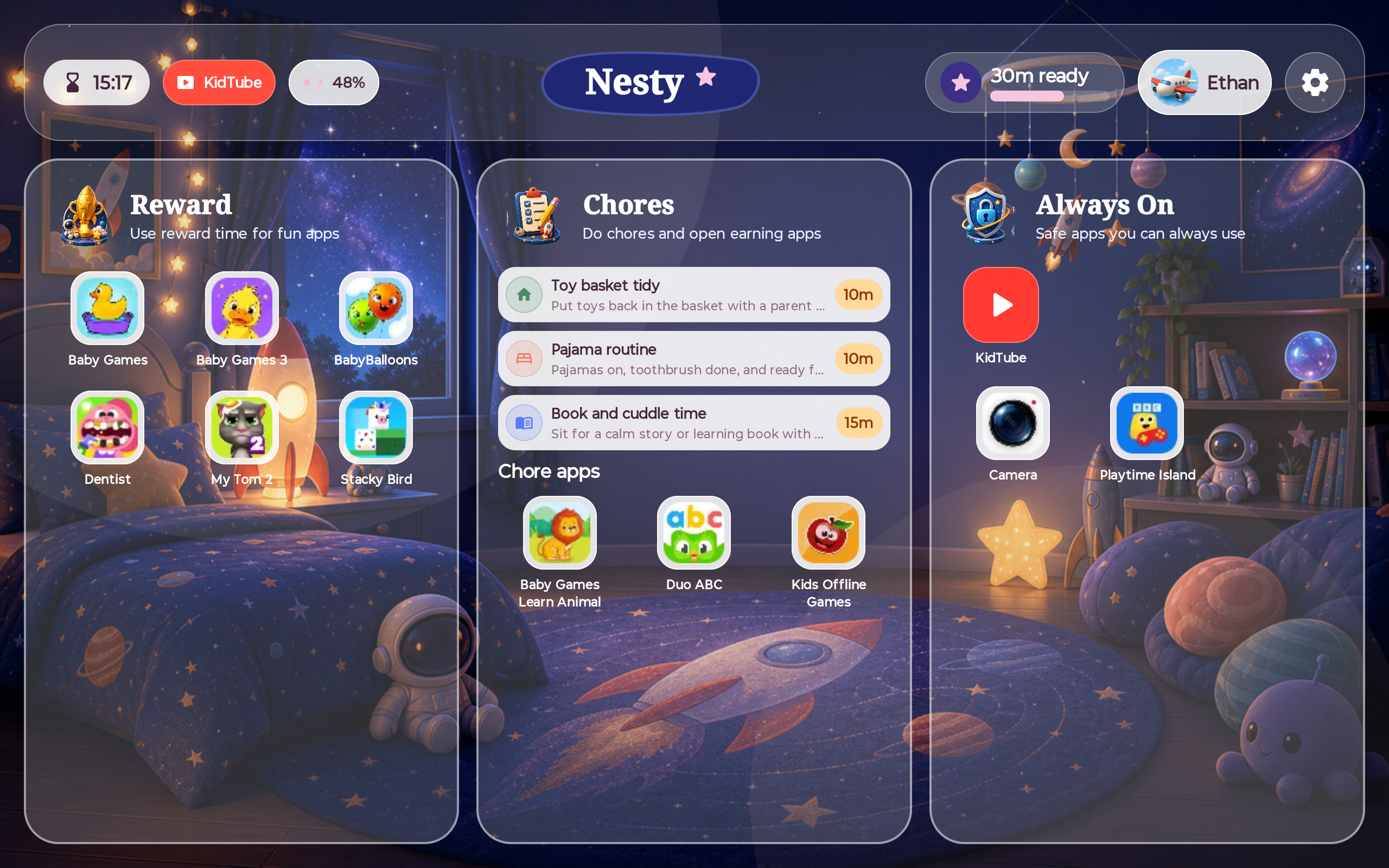
Nesty is strongest when the family wants the child tablet itself to show clear rules: chore or learning apps, reward apps, always-on tools, blocked apps, approved KidTube channels, quiet hours, and setup state that parents can check.
It should sit alongside built-in controls, not erase them. A trustworthy setup can use Family Link or device settings as the account and platform layer, then use Nesty for the visible child-tablet routine where the Android setup supports it.
A calm setup sequence
Set the tablet up in layers, then test as the child.
Parents often skip straight to app blocking. A steadier setup starts with account and store controls, then moves outward.
Use the right child account, parent account, purchase approvals, and recovery details.
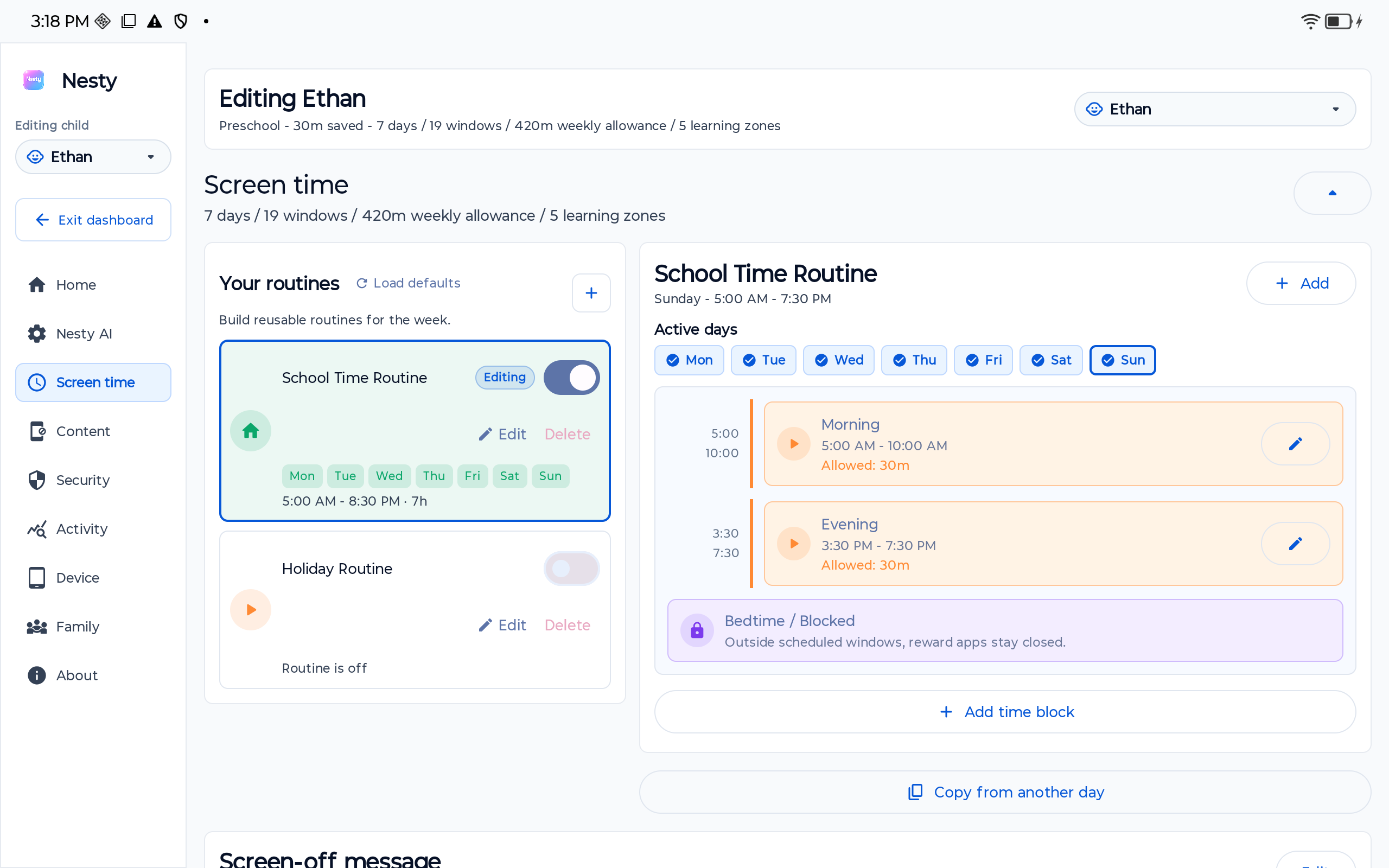
Set daily time, bedtime, school-time rules, and any always-available tools.
Sort learning, chores, rewards, blocked apps, store access, browser access, and system apps.
Open the tablet like the child would. Check what launches, what blocks, and what message appears.
FAQ
Kids tablet parental controls, without the magic promises.
Short answers for parents choosing a tablet setup.
What should I install first?
Start with the tablet ecosystem controls: Google Family Link for Android/Google accounts, Kids Space where supported, or Amazon Parent Dashboard for Fire devices.
Can parental controls make a kids tablet perfectly safe?
No. They reduce open paths and make rules clearer, but parents still need age-appropriate conversations, checks, updates, and recovery planning.
When is Nesty worth testing?
When a child Android tablet needs visible app lanes, KidTube, chores, rewards, schedules, and a parent-managed setup that can be checked from the child view.