Choose a tablet parental control app by device fit, not hype.
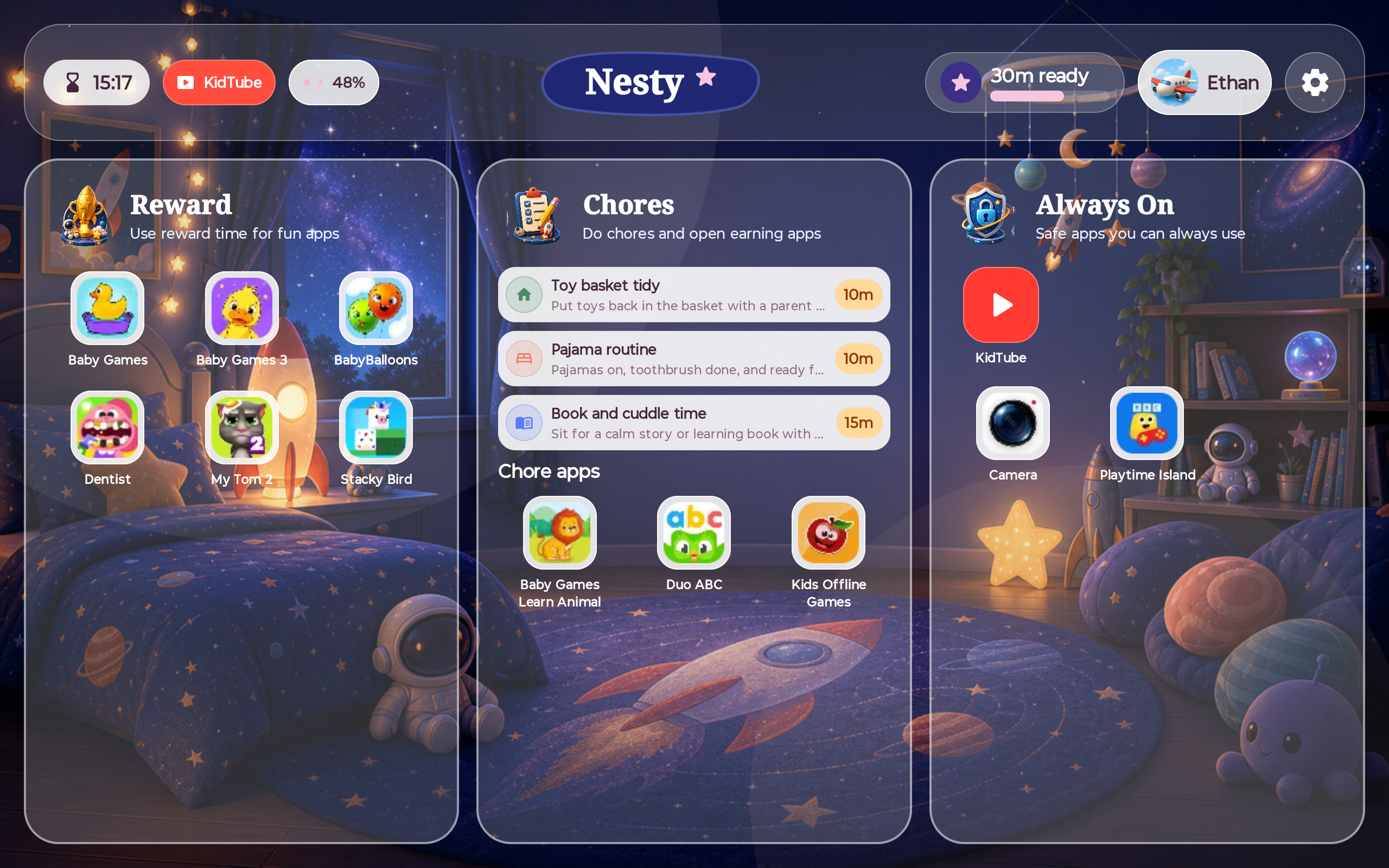
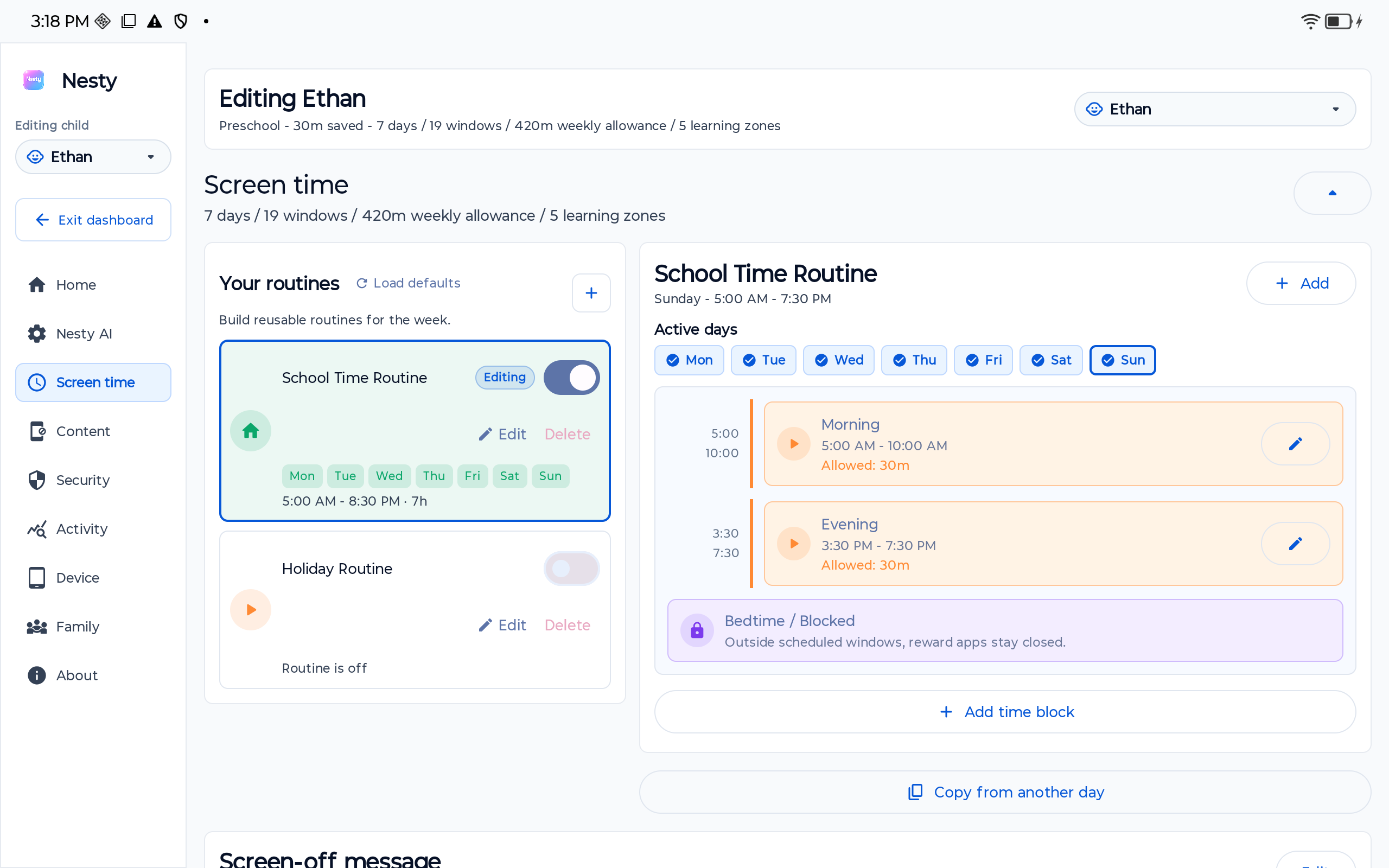
A useful tablet setup starts with the controls built into Android, iPad, or Fire. Nesty fits when a family needs a parent-managed Android child tablet with visible routines, app lanes, KidTube, chores, rewards, and setup checks.
Reviewed on . This guide uses official Android, Google Family Link, Apple Screen Time, and Amazon Parent Dashboard sources before recommending any extra app.
- Android tablets
- iPad and Fire caveats
- Screen time
- Child-view checks
Reviewed buying standard
The first recommendation is not another app. It is the right first layer.
Parents searching for a tablet parental control app often need a buying answer, but a trustworthy answer starts with the tablet's own control model, current source checks, and a child-view test.
Reviewed
21 June 2026
Checked against current Android Help, Google Family Link, Apple Screen Time, and Amazon Parent Dashboard guidance before updating the Nesty fit advice.
Source order
Official sources first
Platform claims should come from public support pages or store listings. Nesty claims should come from visible product behavior and setup evidence.
Product fit
Android child tablets only
Nesty's protected child-tablet routine should not be presented as the same protected mode for iPad, Fire tablets, or every Android phone.
Decision test
Name the missing piece
If built-in controls already solve the account, screen-time, app-store, web, video, and recovery problem, do not add another paid tool.
Short answer
The right app depends on the tablet and the job.
Parents often search for one parental control app. In practice, the safer answer is a layered setup: account controls, device controls, app rules, video choices, and a final test from the child's view.
Start here
Use built-in controls first.
Google Family Link, Apple Screen Time, and Amazon Parent Dashboard each handle important device-specific rules. They are the first layer, not an afterthought.
Then test
Open the tablet like the child.
Check app stores, browsers, YouTube paths, reboot behavior, system settings, purchase prompts, and what message appears when time is off.
Add only if needed
Pick a tool for the missing piece.
Some families need reporting. Some need web filtering. Nesty is for visible Android child-tablet routines: app lanes, KidTube, chores, rewards, and clear lock screens.
Stay honest
No app makes a tablet perfect.
Controls reduce open paths and make rules easier to keep, but parents still need age-appropriate checks, conversations, updates, and recovery plans.
Device fit
Android, iPad, and Fire tablets need different answers.
A tablet parental control app should match the operating system, account model, and family routine. The table below is deliberately conservative.
| Tablet type | First layer to check | When Nesty may fit |
|---|---|---|
| Standard Android tablet | Use Google Family Link and Android settings for screen time, downtime, app limits, app blocking, purchase approvals, and Google account supervision. | When the child tablet needs a visible routine layer with app lanes, KidTube, chores, rewards, quiet hours, and a parent-dashboard/tablet agreement check. |
| Android tablet with Google Kids Space | Check Kids Space support, child account setup, Family Link controls, content recommendations, and whether the tablet exposes settings or apps you did not expect. | When parents want a more parent-managed Android child-tablet routine after confirming the device can support Nesty's setup path. |
| iPad | Use Apple Screen Time, Family Sharing, Content and Privacy Restrictions, app limits, downtime, web content controls, and App Store purchase rules. | Nesty should not be described as offering the same protected child-tablet mode on iPad. Keep iPad controls inside Apple's Screen Time ecosystem unless an approved Nesty iPad child route exists. |
| Amazon Fire tablet | Use Amazon Parent Dashboard, Amazon Kids child profiles, daily time limits, age filters, category rules, content access, and Learn First where appropriate. | Nesty is not a Fire-tablet replacement claim. Treat Nesty as an Android child-tablet product unless a specific Fire setup route has been tested and approved. |
| Older hand-me-down tablet | Check operating system version, security updates, account state, battery, storage, reset status, manufacturer apps, and whether the tablet can still run modern controls reliably. | When the Android tablet is healthy enough for the controlled setup path and the family wants visible rules rather than a loose collection of app timers. |
Official controls
Check the platform's own parental controls before choosing another app.
Google now describes Android parents as having two options: on-device parental controls in Android Settings, expanding to devices that update to Android 17, and Family Link for parent-managed supervision across Android, iOS, and web. Google's Android Help documents daily limits, downtime, app limits, blocked apps, web content filters, app store filters, and a path from on-device controls into Family Link for School Time, location sharing, and more.
Apple Screen Time documents Content and Privacy Restrictions for managing content, apps, settings, and privacy changes on a child's iPhone or iPad. Amazon Parent Dashboard covers screen-time limits and child-profile controls for Amazon Kids and Fire devices.
Those tools may be enough. If they are not, the next app should solve a specific gap that the parent can name and test.
Where Nesty fits
Nesty is built for controlled Android child-tablet routines.
Nesty is not trying to be every parental-control product. It is strongest when the child tablet should show clear rules on the screen itself, while the parent dashboard stays in agreement with what the child can actually open.
Data integrity
Before blaming the app, check that the parent view and child view agree.
Tablet parental controls can look broken when the real issue is stale setup data, the wrong child profile, an old schedule, a missed sync, or a device state that no longer matches the parent dashboard.
For Nesty, check the selected child, app lane, KidTube visibility, schedule, current reward state, tablet sync time, and the child's actual launcher screen before changing rules.
Buying checklist
Questions to answer before paying for tablet parental controls.
A good product page should help you decide not only what to buy, but whether buying is necessary.
Android, iPad, Fire, Chromebook, and hand-me-down tablets each have different controls and limits.
Name the missing piece: screen time, app blocking, web access, video, rewards, setup clarity, reporting, or recovery.
Visible rules reduce confusion. Hidden limits may still work, but they can leave parents explaining the tablet every time.
Use the child view, parent dashboard, support pages, privacy page, terms, and cancellation route before trusting a paid setup.
FAQ
Tablet parental control app questions.
Short answers for parents comparing device controls with a specialist Android child-tablet setup.
What is the best tablet parental control app?
The best choice depends on the tablet. Start with Google Family Link for Android, Apple Screen Time for iPad, or Amazon Parent Dashboard for Fire tablets, then add another tool only when it solves a real gap.
Does Nesty work on every tablet?
No. Nesty's controlled child-tablet experience is designed for parent-managed Android child tablets. It should not be described as the same protected mode for iPad or Fire tablets.
What should I test before relying on controls?
Test screen time, app access, purchase approval, browser access, video apps, reboot behavior, child account state, and whether the child view matches the parent dashboard.