Chores and reward time
Turn chores into clear tablet rules, not bargaining.
A chores reward screen time app should make learning, chores, entertainment, always-on tools, and quiet time visible on the child tablet. Nesty helps parents separate those roles so reward time feels like a rule the tablet can explain.
Reviewed on against Google Family Link screen-time and app-limit controls, family media planning guidance, and Nesty child-tablet chores and reward behavior.
Review standard
What this guide was checked against.
This page is written for parents comparing chore rewards, built-in Android supervision, and a child-tablet launcher. The review standard keeps the advice grounded in what can be tested.
Built-in controls first
Family Link can handle daily limits, device locks, bonus time, app limits, unlimited-time apps, downtime, and school-time routines on supported devices.
No behavior guarantee
Reward screen time can support a routine, but it should not replace parent judgement, family rules, sleep needs, school work, or offline time.
Child-view proof
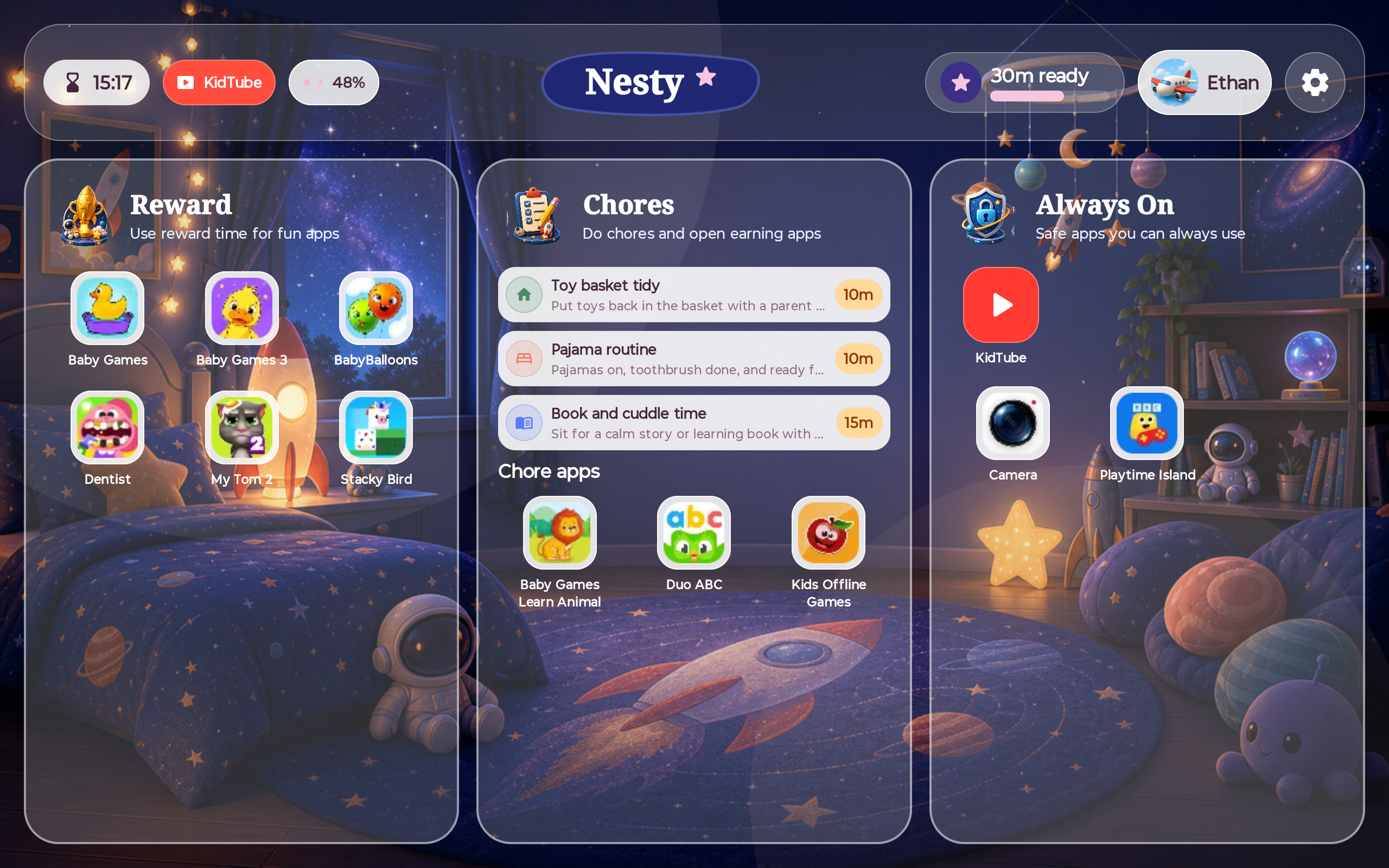
A reward setup is not ready until the child tablet shows the same app lanes, schedule, reward window, blocked paths, and always-on tools the parent intended.
Data integrity check
Wrong child, stale tablet data, old reward state, or an app in the wrong lane can make a good rule look broken, so diagnosis starts with the data.
Reward checklist
Separate the jobs before setting the timer.
Rewards work best when the tablet rule is easy to inspect. Define which apps are work, which are fun, which should stay available, and when the device should be off.
Chore and learning apps
Keep reading, practice, school, and chore apps separate from games so work time does not unlock the whole tablet.
Reward apps
Choose which entertainment apps can use earned time, weekend time, or a parent-approved exception.
Always-on tools
Decide which tools should stay available, such as reading, accessibility, family communication, or essential school apps.
Quiet hours
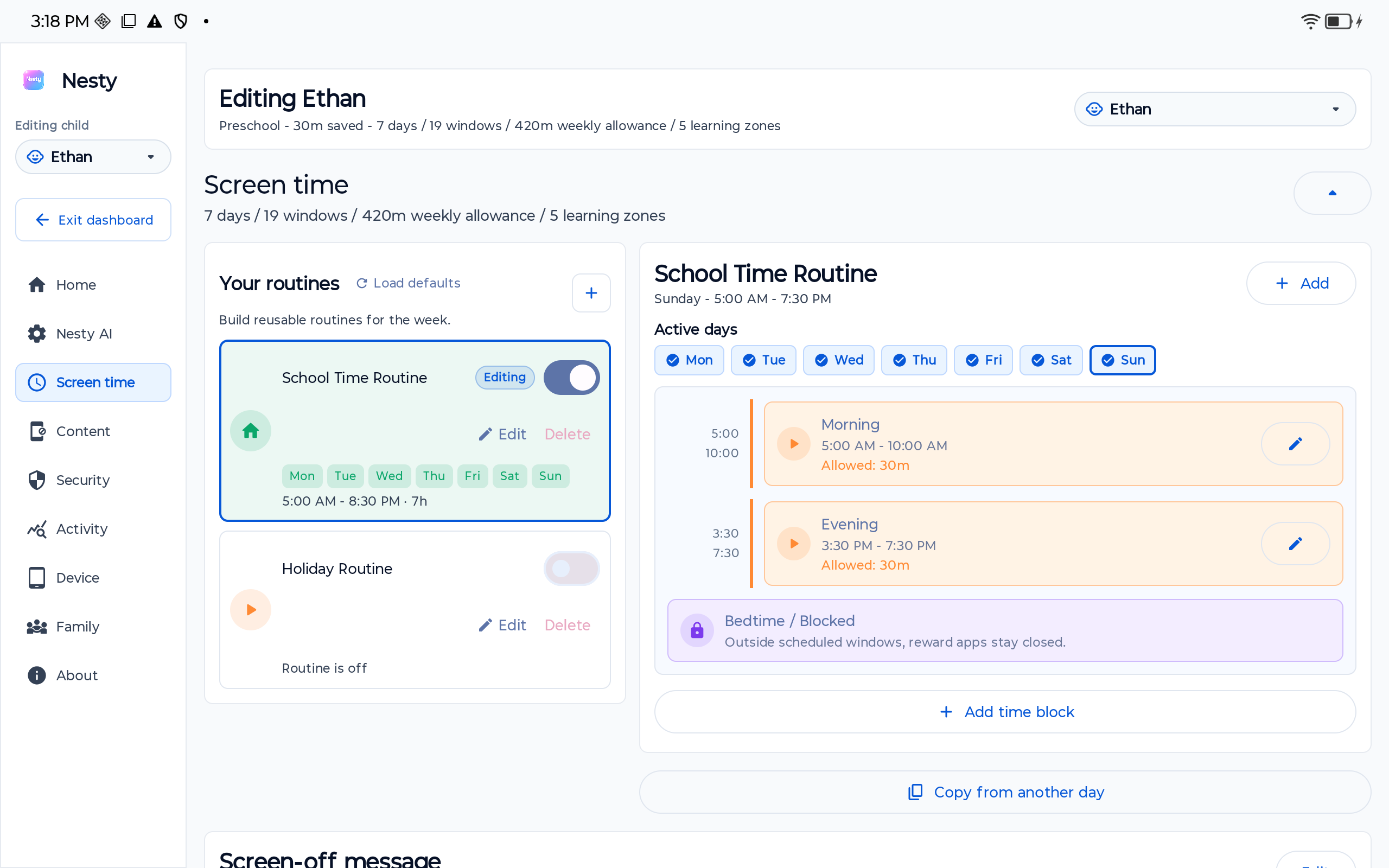
Use schedules so bedtime, school, homework, and family time are not negotiated one app at a time.
Start with built-in controls
Family Link already covers important screen-time basics.
Google Family Link can set daily limits, add bonus time, lock or unlock supported child devices, set downtime or school-time schedules, and manage app limits. It also supports unlimited-time apps on supported Android devices, with documented limits and device-version requirements.
That matters because a chores app should not be judged only by whether it grants minutes. Parents also need to know which apps stay available after limits, whether limits apply per device, and whether the child can still use the tools needed for school, accessibility, reading, or family contact.
Use those built-in controls first where they fit. Then add Nesty when the family needs a clearer child-tablet surface for chores, rewards, KidTube, always-on tools, and parent-managed routines.
Where Nesty fits
Nesty makes rewards part of the same visible tablet rule.
Nesty is built for Android child tablets where parents want the child to see what is open now, what waits for reward time, and which apps are simply not available.
Setup path
Make the reward rule small enough to test.
Before relying on a reward system, walk through it as the child and verify each lane, schedule, and exception.
Decide what earns time, when reward apps are allowed, and when schedules override everything.
Place apps into chore or learning, reward, always-on, and blocked lanes rather than treating all apps alike.
Open the tablet as the child and confirm chore apps, reward apps before and after the reward window, KidTube, always-on tools, schedules, and blocked paths behave as expected.
Check whether the current usable reward time shown on the child tablet matches the parent dashboard before changing rules again.
Data integrity check
If reward time looks wrong, verify the data before changing the rule.
When diagnosing chores and rewards, check the right family, child profile, tablet, app lane, screen-time schedule, always-on list, KidTube rule, and current reward state. A stale child profile, old tablet payload, old reward window, or app assigned to the wrong lane can look like a reward failure.
Also separate current usable reward time from wider allowance or banked time. A child may see a number that reflects the current schedule plus earned or stored time, so do not diagnose from one number without checking the parent dashboard and the tablet state together.
FAQ
Chores and reward screen-time questions.
Short answers for parents comparing built-in controls, reward apps, Family Link, and Nesty tablet routines.
What should a chores reward screen time app do?
It should separate learning or chore apps from reward apps, show the child what is available now, respect schedules, and let parents test the tablet after changes.
Should rewards replace normal limits?
No. Reward time should sit inside a wider family media plan with limits, downtime, app rules, and parent judgement. It is a routine tool, not a behavior guarantee.
How does Nesty separate chores from rewards?
Nesty lets parents place apps into chore or learning, reward, always-on, and blocked lanes so the child tablet can show clearer rules.