
Child Android tablet lockdown
Lock down the tablet without hiding the rules.
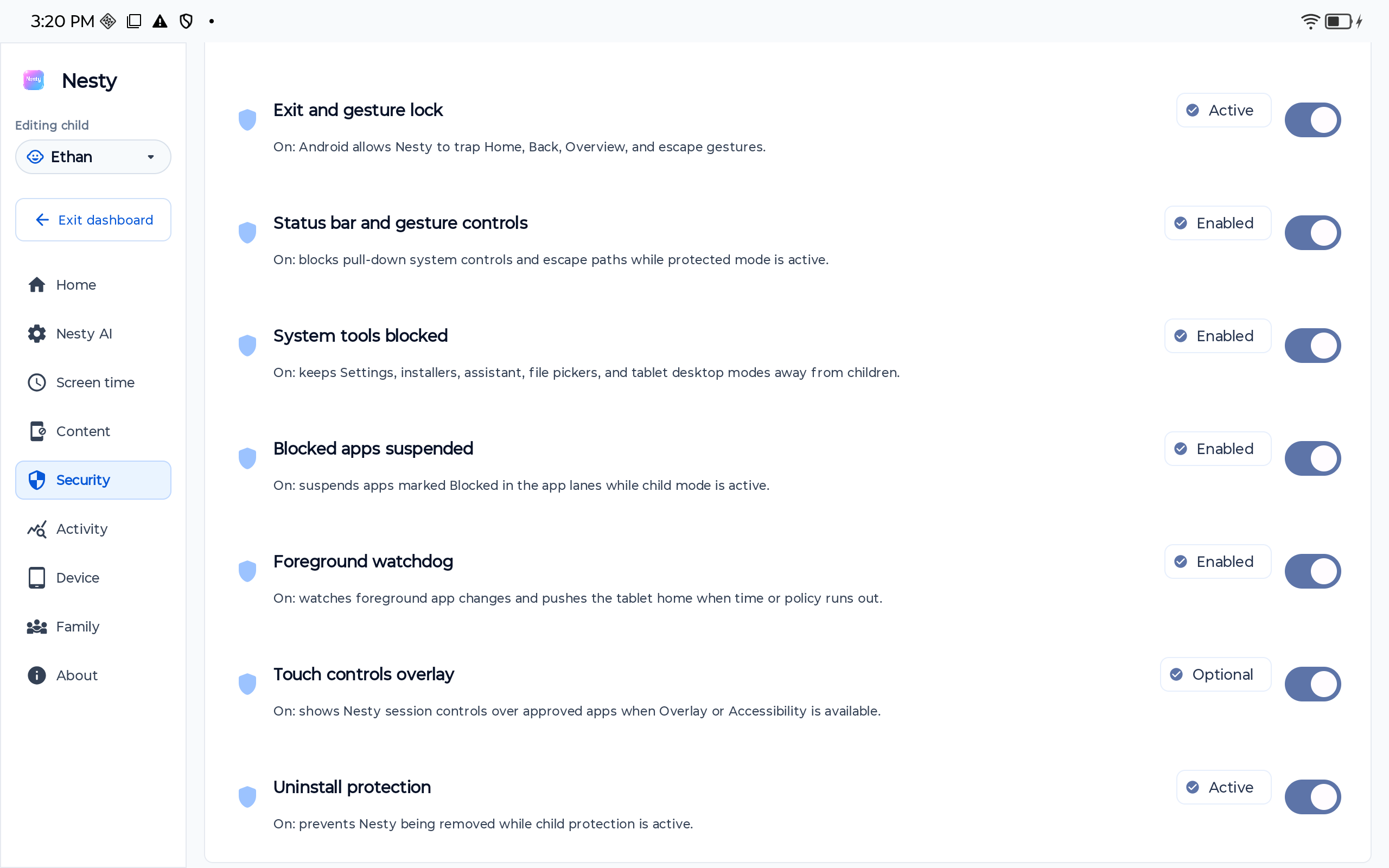
A good lockdown is not just a secret PIN. It combines built-in Android controls, parent account supervision, app and website boundaries, video limits, recovery planning, and a child screen that explains what is allowed right now.
Quick checklist
The practical order to lock down a child Android tablet.
Work from the foundation upward. The goal is a tablet the parent can recover and the child can understand.
Secure the parent layer
Use a parent-controlled account, a strong parent PIN, purchase approvals, and a recovery path before handing the tablet back.
Limit time and downtime
Set daily limits, bedtime or quiet hours, and school-time rules. Avoid vague promises that change every evening.
Choose app and web rules
Decide which apps are always available, which are earned, which are blocked, and which websites should never open.
Plan video boundaries
Treat video separately. Keep open-ended YouTube access away from young children and use parent-approved channels where possible.
Start with Android
Use the controls Google already provides first.
Android and Google Family Link can help parents set screen time, app limits, downtime, content restrictions, app approvals, privacy settings, and account controls. Those tools are the right first stop because they sit close to the operating system and Google account.
If those controls are enough for your family, stop there. The most trustworthy setup is the simplest setup that works. Add another tool only when you need a more controlled child-tablet experience.
Where Nesty fits
When a child tablet needs to behave like a family device.
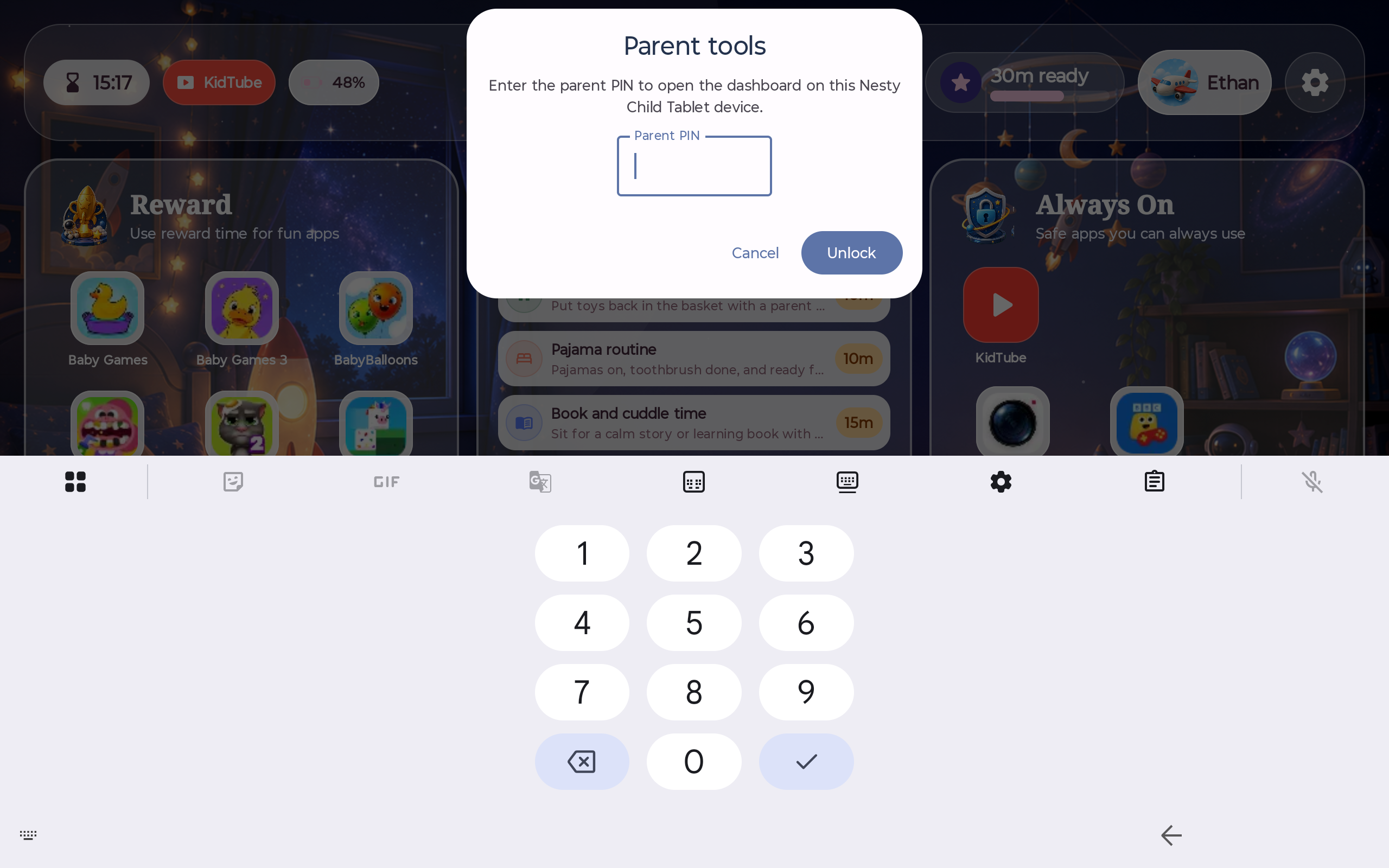
Nesty is designed for parents who want the child Android tablet itself to show the rule: what is open now, what is earned, what is paused, and why time has stopped.
Setup reality
Check the practical fit before you promise a locked-down tablet.
The right setup depends on the tablet, Android version, child age, account state, and how much control the family actually needs.
Nesty's controlled child-tablet mode is for Android tablets. It is not the same protected child mode on iPad.
The current controlled setup path works from a reset child tablet. Back up anything important before changing the device.
Use the parent app to confirm the correct child, schedule, app lanes, websites, KidTube choices, and reward rules before testing.
Save the setup site and troubleshooting page so you can update the child app, use PC Link, or recover a setup mistake.
Not a shortcut
What parents should still check by hand.
After any lockdown change, test the tablet as the child would use it. Open the always-on apps, reward apps, games, browser, video paths, app store, settings, and any apps that were already installed.
Also check data integrity: confirm that the child profile, schedule, blocked websites, allowed apps, KidTube channels, and reward rules shown in the parent app match what the child tablet actually receives. A mismatch can look like a control failure when the real issue is stale setup data.
FAQ
Child Android tablet lockdown questions.
Short answers for parents deciding how strict the tablet should be.
What is the safest first step?
Start with built-in Android controls and Google Family Link. Add Nesty when you need a clearer child-tablet experience with visible rules, app lanes, KidTube, chores, rewards, and recovery support.
Does lockdown make the tablet perfectly safe?
No. It reduces risk and makes boundaries clearer, but parents still need age-appropriate rules, regular checks, account recovery, and honest conversations.
Can I lock down an old tablet?
Maybe. Check that the tablet runs Android, can be reset if needed, has reliable internet, and still performs well enough for the controls and child apps you plan to use.