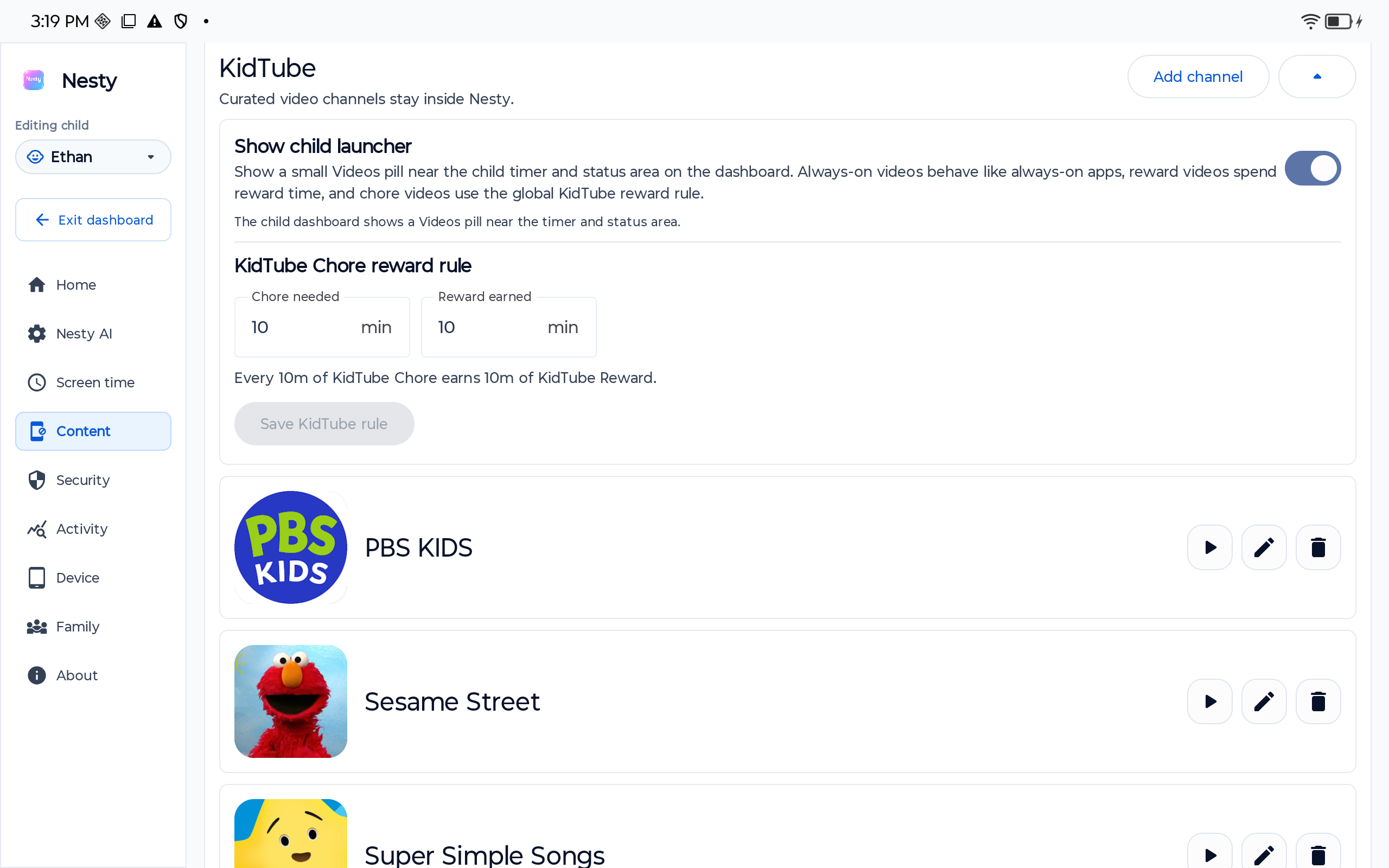
KidTube approved channels
A smaller video path for kids tablets.
Parents looking for a kid safe YouTube alternative on a tablet usually want less open-ended browsing, not another endless feed. KidTube gives Nesty families a parent-approved channel path while regular YouTube stays blocked by default.
Reviewed on against YouTube Kids parent controls, supervised YouTube content settings, YouTube's kids-and-teens guidance, and Nesty's child-tablet KidTube behavior.
Reviewed video standard
A kid-safe video setup should narrow the path and still admit its limits.
Parents searching for a kid safe YouTube alternative need a practical rule, not a magic label. Start with YouTube's own family controls, then test whether the child tablet shows only the video path the parent intended.
Reviewed 21 June 2026
This guide was checked against official YouTube Kids, supervised YouTube, Family Link, and YouTube kids-and-teens sources before positioning KidTube.
Built-in first
YouTube Kids can use approved content only, content levels, search controls, autoplay controls, watch history controls, and blocked videos or channels where available.
Honest limit
YouTube says automated systems can make mistakes and no system is perfect. KidTube should reduce open-ended browsing, not promise every video is safe.
Child-view proof
After changing video rules, test KidTube, regular YouTube, browser access, reward timing, history/recommendation behavior, and the visible child launcher.
Video checklist
Decide what video should be before choosing the app.
A safer video setup starts with the family rule: search or no search, open feed or approved channels, reward time or learning time, and how often parents review it.
Open browsing
Regular YouTube is broad and discovery-led. It may fit older children with supervision, but it is rarely the calmest default for a young child tablet.
YouTube Kids settings
Use content levels, search controls, approved content, autoplay controls, and history settings where YouTube Kids is available.
Supervised YouTube
For children ready to move beyond YouTube Kids, supervised accounts offer content levels and parent settings through YouTube and Family Link.
KidTube lanes
Use KidTube when the child tablet should show only parent-approved channel access inside the Nesty rule set.
Start with YouTube controls
Google already gives parents useful video settings.
Family Link can help parents manage YouTube Kids and supervised YouTube options. Depending on the setup, parents can choose YouTube Kids content levels, approve content themselves, turn search on or off, choose supervised YouTube content settings, disable autoplay, pause or clear watch and search history, and manage some blocked videos or channels.
Those controls are the right first layer. YouTube also says parents can choose approved-content-only mode in YouTube Kids, and that automated systems can still make mistakes. The trust-first question is not "Which app sounds safest?" It is "Which setup gives this child the smallest useful video path, and can the parent test it?"
Where Nesty fits
KidTube is a smaller path, not the whole internet with a nicer name.
Nesty treats video as its own child-tablet rule. Parents decide whether KidTube appears, which channels are available, and whether entertainment video belongs in reward time, learning time, or not at all.
Setup path
Make video boringly testable.
The best video rule is one a parent can explain, test, and adjust without rebuilding the whole tablet.
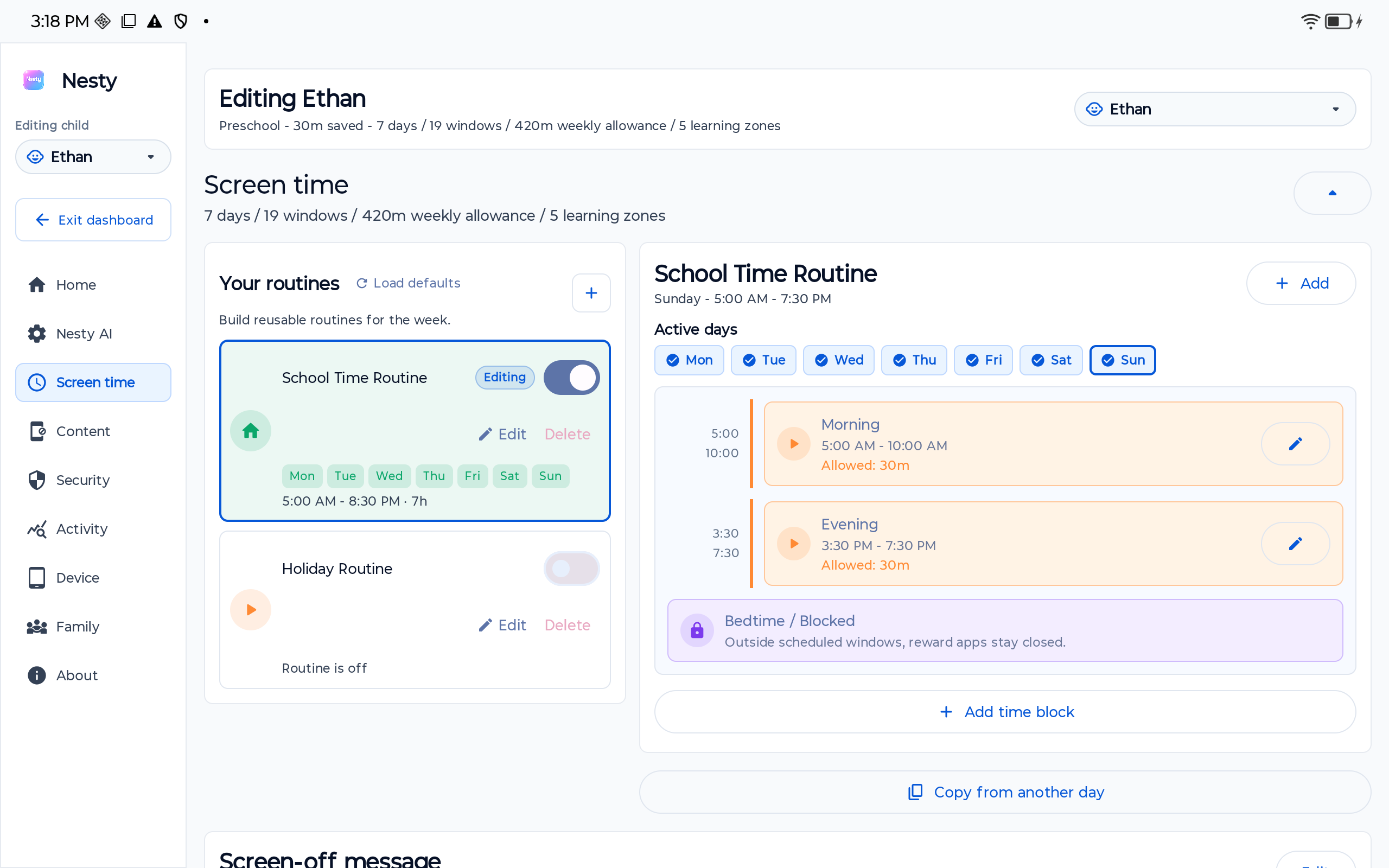
Decide whether video is learning, reward entertainment, quiet-time viewing, or unavailable during the week.
Use YouTube Kids or supervised YouTube settings where they fit, including content levels, search, autoplay, and history controls.
Choose a small list of channels, then preview what the child can actually open on the tablet.
Children change quickly, channels change over time, and a video rule that worked last month may need tightening or relaxing.
Data integrity check
If the wrong video path appears, verify the child profile and launcher state.
When diagnosing KidTube or video access, check the right child profile, tablet, KidTube visibility, approved channels, app lanes, website rules, schedule, reward state, and whether the latest settings reached the child tablet. A stale setting can look like a failed video rule.
Then test from the child tablet: open KidTube, try regular YouTube, test the browser, check reward-time behavior, review whether history or recommendations are changing the path, and confirm the child sees the expected launcher. Keep the review practical and repeatable.
FAQ
KidTube and safer video questions.
Short answers for parents comparing YouTube Kids, supervised YouTube, approved channels, and Nesty KidTube.
What is a kid safe YouTube alternative?
Start with YouTube Kids or supervised YouTube where they fit. KidTube is Nesty's smaller parent-approved channel path for controlled Android child tablets.
Does KidTube make every video safe?
No. It reduces open-ended browsing, but parents still need to review channels, test what plays, and update choices as the child grows.
Should I still use Family Link?
Yes. Family Link and YouTube family settings are useful first-layer controls. Nesty adds a visible child-tablet rule and KidTube launcher control.