
Samsung tablet guide
Samsung tablet parental controls work best when you choose the right child layer.
Galaxy tablets can use Samsung Kids, Samsung account family controls, Google Family Link, Android settings, and sometimes Nesty. Use the official controls first, then prove the actual child tablet behaves correctly before handover.
- Samsung Kids
- Family Link
- Child account
- Nesty fit
Short answer
Samsung tablets have more than one parental-control layer.
The best setup depends on the child's age, account model, tablet model, Android version, and whether the family needs a simple child space or a broader daily routine.
1. Built-in child space
Samsung Kids is the local child mode.
Samsung Kids can give younger children a separate profile with allowed content, screen-time tools, bedtime, parental controls, and PIN-protected exit.
2. Samsung account layer
Samsung family controls manage Samsung services.
A Samsung child account can help parents manage Samsung services, downloads, purchases, app access, web access, and PIN-protected settings where supported.
3. Google account layer
Family Link manages the Google side.
Family Link is the parent-managed layer for a child's supervised Google Account, including screen time, app limits, Play settings, and device supervision on supported Galaxy tablets.
4. Routine layer
Nesty is not a replacement for platform controls.
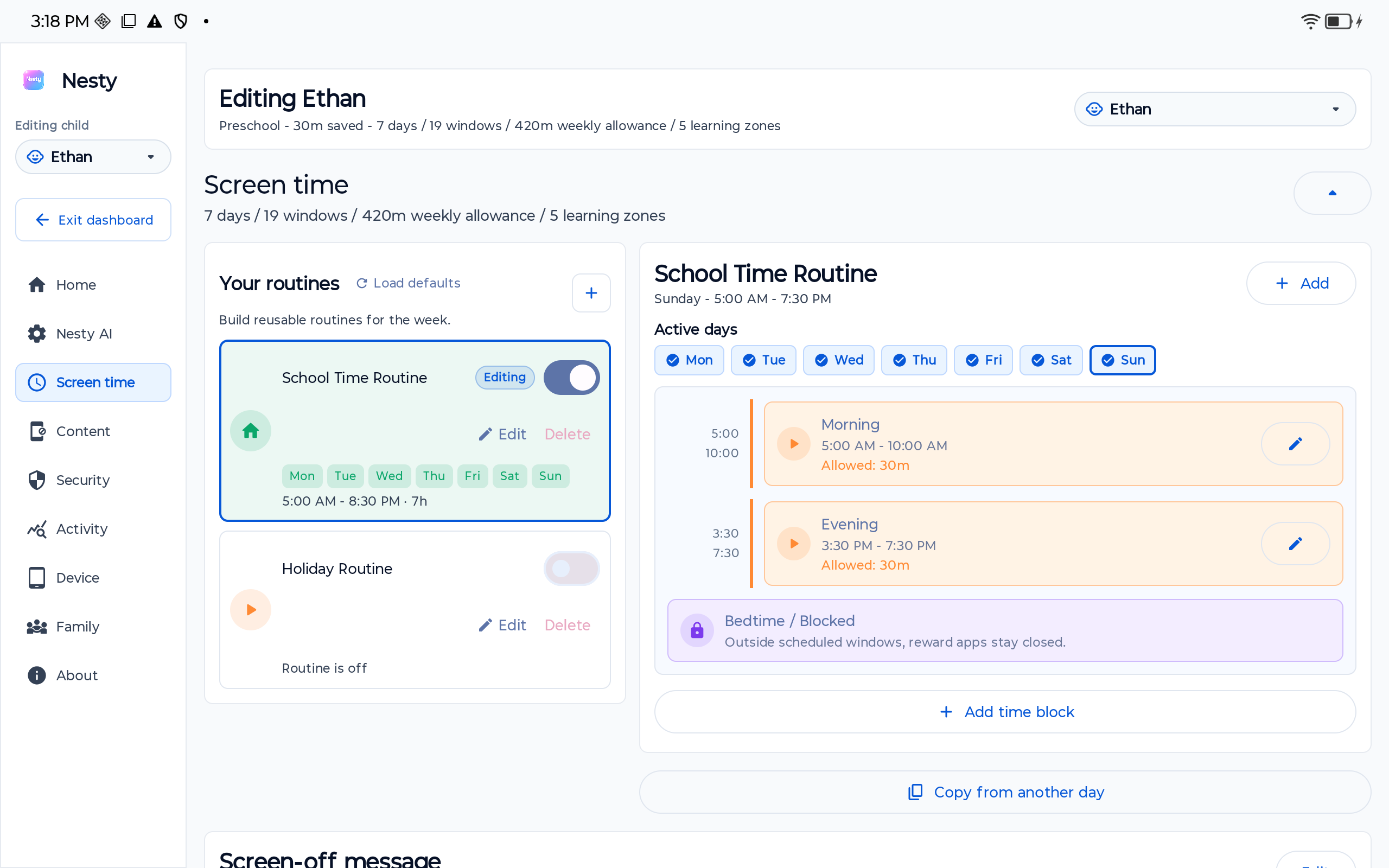
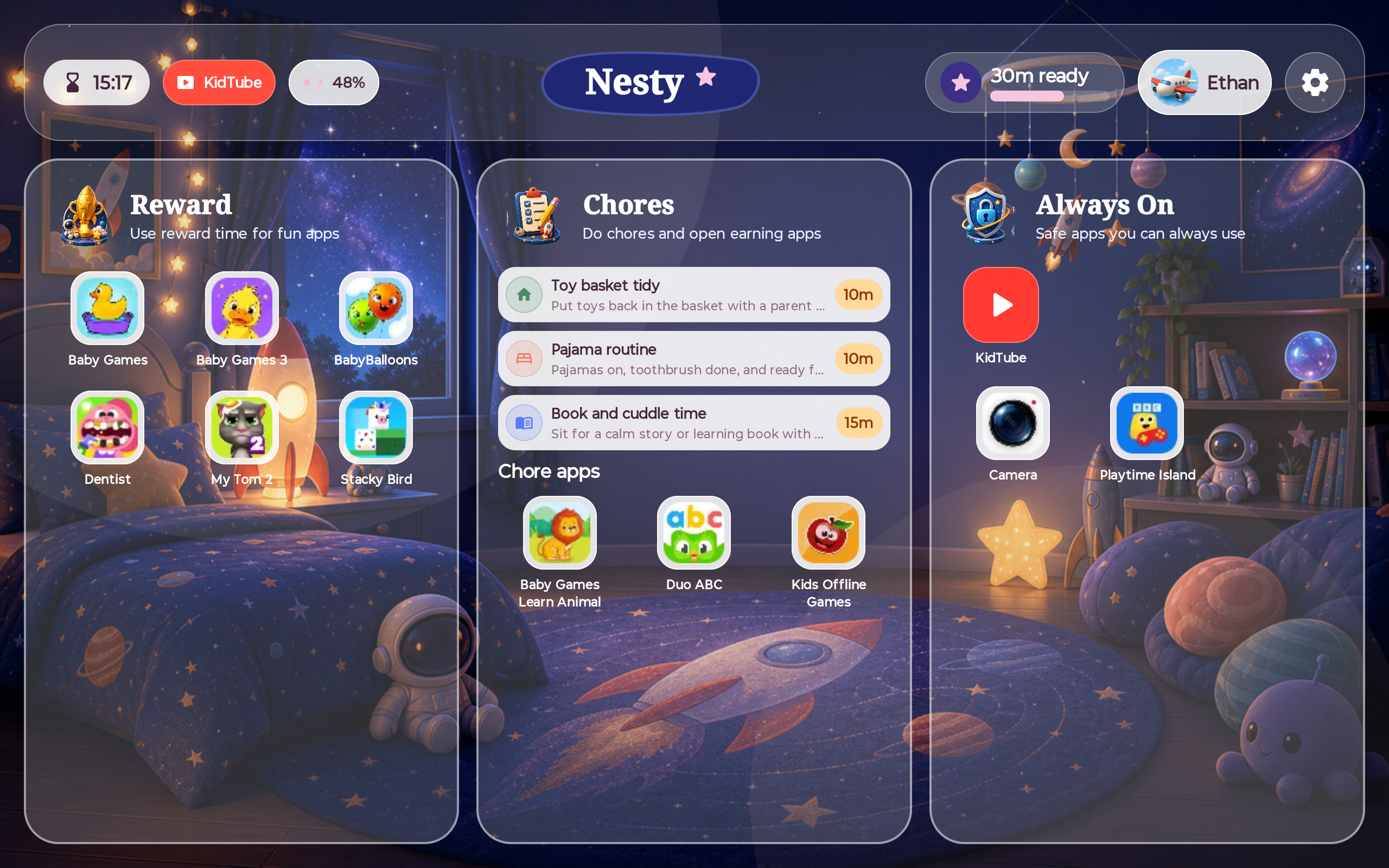
Nesty fits after Samsung and Google controls are healthy, adding visible app lanes, KidTube, chores, rewards, schedules, and parent-child state checks on supported Android child tablets.
Decision table
Choose the layer by the job it actually does.
Do not stack every control blindly. Pick the baseline layer first, then add only what solves a real parent or child problem.
| Control layer | Best for | What to verify | Nesty fit or next step |
|---|---|---|---|
| Samsung Kids | A younger child who needs a simple, local child space on a Samsung tablet. | Profiles, allowed apps and content, screen time, bedtime, PIN protection, exit behavior, and whether the exact model includes Samsung Kids. | Use alone if it solves the problem. Add Nesty only if the family needs visible routines beyond Samsung Kids. |
| Samsung account family controls | Families managing Samsung account services, purchases, downloads, web access, and child-account permissions. | Child account age, parent account ownership, purchase approval, app and web settings, PIN path, and recovery details. | Write down the recovery path before adding any other layer. |
| Google Family Link on Galaxy | A child using a supervised Google Account, Play Store, Google apps, Chrome, YouTube settings, app limits, and screen-time schedules. | Device appears in Family Link, limits sync, Play controls apply, schedules match the tablet clock, and changes survive restart. | Use Family Link as the Google baseline before comparing Nesty against the child screen. |
| Android Settings | Local Android controls such as screen time, app limits, downtime, blocked apps, web filters, store filters, PIN setup, and recovery where supported. | Android version, manufacturer settings, on-device parental-control path, PIN recovery, and overlap with Family Link. | See the Android 17 guide before relying on update-label claims. |
| Nesty | Parents who want the child to see clear app lanes, KidTube, chores, reward time, quiet hours, and a tablet routine. | Nesty parent dashboard, child tablet state, allowed apps, reward windows, chores, KidTube, sync timing, and platform permissions. | Use as the routine layer after Samsung, Google, and Android controls have passed a child-side test. |
Official source layer
Use Samsung and Google sources as the baseline.
Samsung and Google describe different control layers. Read the official sources, then test the exact Galaxy tablet because model, account, region, Android version, and software updates can change what is available.
Setup order
Build the Samsung tablet setup in a calm order.
The safest setup is not the one with the most products. It is the one a parent can explain, recover, and test from the child side.
Data integrity checks
Match the parent settings to the child tablet state.
Many parental-control problems are state problems: the wrong account, stale sync, mixed profiles, device clock drift, old tablet ownership, or a rule that looks right but does not apply to the child screen.
Confirm Android version, built-in parental controls, Family Link overlap, PIN recovery, and whether the device supports the controls you intend to use.
Check child account, device identity, app limits, schedules, sync, time zone, Play controls, and whether the child tablet sees the same state.
Work through account order, parent dashboard checks, child view checks, recovery, and handover testing.
Buying decisions should check Samsung Kids, Google Kids Space, Family Link, updates, storage, repairability, and what can be tested today.
Understand Nesty's app, website, KidTube, chores, reward, schedule, and parent-dashboard boundaries before relying on it.
Compare Android, iPad, Fire, built-in controls, and Nesty fit without assuming one app can replace every platform control.
Handover test
Test the Samsung tablet as the child before you hand it over.
A Samsung tablet setup is ready only when the child-side state matches the parent intent after restart, sync, and normal child behavior.
Open Samsung Kids, check the child profile, allowed apps, content, bedtime, screen time, parental controls, PIN prompt, and exit behavior.
Change one app limit or downtime rule, wait for sync, restart the tablet, and check whether the child screen follows the parent rule.
Try Play Store, browser, regular YouTube, account switching, settings changes, app installs, app switching, and unrestricted apps during downtime.
If Nesty is installed, compare the parent dashboard with the child tablet: app lanes, KidTube, chores, rewards, schedules, quiet hours, and current availability.
FAQ
Samsung tablet parental-control questions.
Short answers for parents choosing between Samsung Kids, Family Link, Android settings, and Nesty.
Is Samsung Kids enough for a child tablet?
It can be enough for a younger child's simple Samsung child space if profiles, allowed apps, content, screen time, bedtime, PIN protection, and exit behavior pass a child-side test.
Should I use Family Link on a Samsung tablet?
Usually yes when the child uses a supervised Google Account. Family Link helps manage screen time, app limits, Play controls, Google-account settings, and supported device supervision.
Can Nesty replace Samsung Kids or Family Link?
No. Samsung and Google controls should remain the platform baseline. Nesty fits as a visible Android child-tablet routine layer after those controls are working.
What should I test before giving a Samsung tablet to a child?
Test Samsung Kids, Family Link, Android Settings, app stores, browsers, YouTube paths, schedules, blocked apps, restart behavior, PIN recovery, and Nesty parent-child agreement if used.