Google Kids Space guide
Google Kids Space works best when Family Link is set up first.
Google Kids Space can make a compatible Android tablet feel more child-friendly, but it is not the whole control system. Parents still need a supervised child account, Family Link, device checks, app approvals, and a child-side handover test before trusting the tablet.
- Kids Space
- Family Link
- App approvals
- Nesty fit
Short answer
Kids Space is the child tablet experience; Family Link is the control layer.
Use Google Kids Space for a younger child's tablet home screen on supported Android tablets. Use Family Link to manage the supervised child account, time, apps, Google Play, and content settings.
1. Child home screen
Kids Space changes the tablet experience.
Google describes Kids Space as a tablet experience with a custom home screen and recommendations for apps, games, books, and YouTube Kids content.
2. Parent controls
Family Link manages the boundaries.
Family Link is where parents manage screen time, downtime, app limits, app approvals, Google Play settings, Chrome/Search/YouTube settings, and account controls where supported.
3. Device fit
Compatibility matters before purchase.
Google says Kids Space is available on select Android tablets and requires a Google Account for the child. Check the exact model and region before relying on it.
4. Routine gap
Nesty should have a clear job.
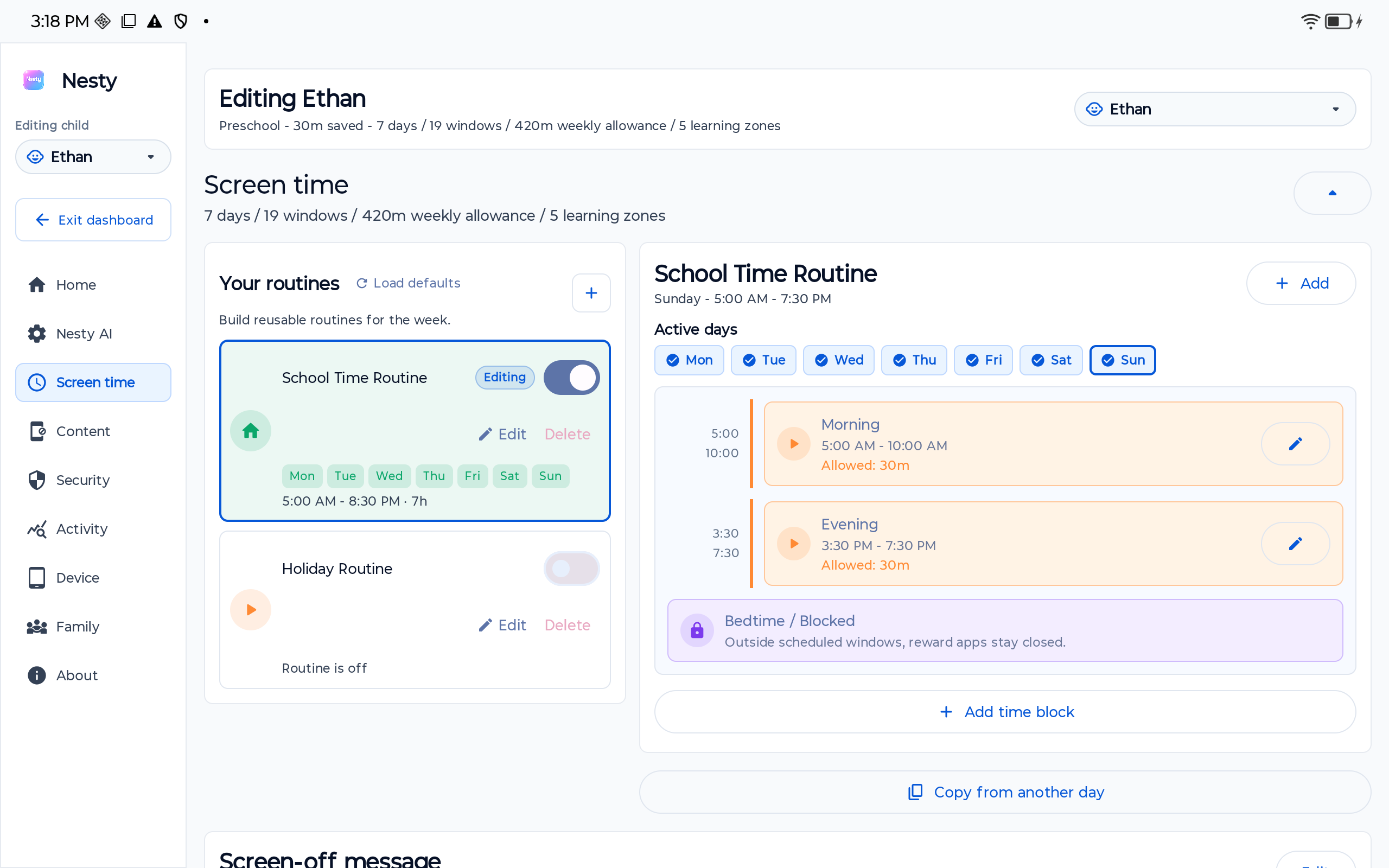
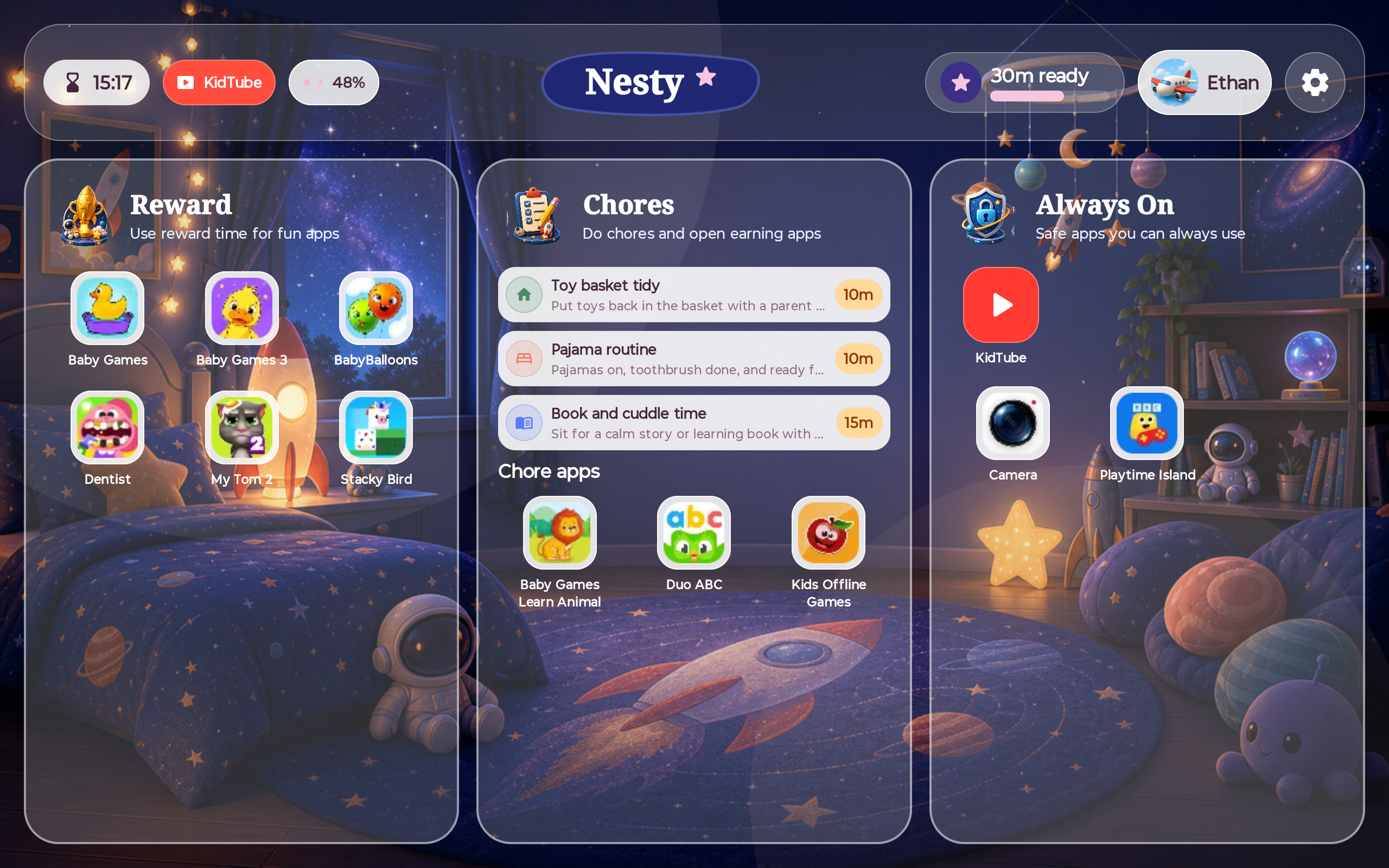
If a family needs visible app lanes, KidTube, chores, rewards, quiet hours, and parent-child state checks, Nesty can be tested after the Google setup is working.
Decision table
Choose Kids Space, Family Link, or Nesty by the job.
The safest setup is one a parent can explain and prove on the child tablet.
| Layer | Best for | What to verify | Where Nesty fits |
|---|---|---|---|
| Google Kids Space | A younger child on a compatible Android tablet who benefits from a child-focused home screen and recommended content. | Supported tablet, child Google Account, region availability, Kids Space entry and exit, recommended apps, books, YouTube Kids path, and parent menu. | Use Kids Space alone if it solves the family problem. Add Nesty only if the child needs clearer daily routines. |
| Family Link | Parent-managed Google account supervision, screen time, downtime, app limits, app approvals, Play controls, Chrome/Search/YouTube settings, and device location where supported. | Parent account, child account, device identity, app approvals, sync timing, date/time, content settings, and whether changes appear on the child tablet. | Treat Family Link as the Google baseline. Compare Nesty against the child screen only after Family Link state is clear. |
| Android Settings | On-device controls, Digital Wellbeing, parental-control entry points, PIN or parent access checks, and Android-version-specific controls. | Android version, manufacturer settings, parent access code, child account state, and how the settings overlap with Family Link. | Use Android settings to prove the platform first, especially on Android 17 or manufacturer-customized tablets. |
| Nesty | A supported Android child tablet that needs visible learning, reward, always-on, blocked, and KidTube lanes plus chores and quiet hours. | Nesty parent dashboard, selected child, sync timing, app lanes, KidTube visibility, chores, reward state, schedules, and the child launcher screen. | Use as a routine layer, not as a replacement for Kids Space or Family Link. |
Official source layer
Start with Google's own Kids Space and Family Link guidance.
Google's pages make the split clear: Kids Space is a child tablet experience on select Android tablets, while Family Link provides the parent controls that manage account, time, apps, content, and approvals.
Setup order
Set up Google Kids Space in layers you can test.
A calm setup starts with the child account and Family Link, then Kids Space, then any extra routine layer only if the family needs it.
Data integrity checks
When Kids Space looks wrong, compare the state before changing rules.
Many problems are not content problems. They are account, device, sync, schedule, clock, region, or app-state problems.
Use the troubleshooting guide to compare child profile, signed-in device, app limits, downtime, schedules, sync timing, and the child screen.
Confirm account order, reset decisions, Family Link state, Nesty setup, parent-dashboard agreement, and recovery before handover.
Android 17 and manufacturer settings can change where parental controls appear, but the exact child tablet still decides what works.
If the tablet is Samsung, compare Kids Space with Samsung Kids, Samsung child accounts, Family Link, Android settings, and Nesty fit.
Understand Nesty's child-tablet data, app lanes, KidTube, chores, rewards, schedules, screenshot/camera-shot artifacts, and deletion routes.
Compare Android, iPad, Fire, built-in controls, and Nesty fit before adding another product to the tablet.
Handover test
Test Kids Space as the child before you trust the setup.
The parent app is not enough evidence. The child tablet has to prove the setup from the child's side.
Restart the tablet, reconnect Wi-Fi, enter Kids Space, confirm the child profile, and check whether the expected tabs and apps appear.
Open approved apps, books, YouTube Kids, learning apps, and any always-available tools that should remain usable during limits.
Try app installs, Play Store paths, regular YouTube, browser paths, account switching, settings changes, and Kids Space exit.
Compare Family Link, Android settings, Kids Space state, and Nesty parent dashboard if installed. Change only one rule at a time and wait for sync.
FAQ
Google Kids Space parental-control questions.
Short answers for parents deciding whether Kids Space, Family Link, and Nesty belong on the same child Android tablet.
Is Google Kids Space a parental control app?
Not by itself. Kids Space is the child tablet experience. Family Link is the parent-control layer for screen time, app limits, app approvals, Google Play, content settings, and account supervision.
Does Kids Space work on every Android tablet?
No. Google says Kids Space is available on select Android tablets and requires a Google Account for the child. Check the exact tablet before buying or handing it over.
Can Nesty replace Google Kids Space or Family Link?
No. Nesty should sit after the Google platform setup as a visible Android child-tablet routine layer, not replace Google's account and parental-control system.
What should I test before trusting Kids Space?
Test Family Link sync, app approvals, screen time, downtime, allowed apps, blocked apps, YouTube Kids, Play Store paths, exit behavior, restart behavior, and the actual child screen.