Android 17 guide
Android 17 parental controls are useful, but still need a child-tablet test.
Google says Android 17 expands built-in parental controls to Android devices, including on-device screen time, app limits, downtime, and recovery options. That is good news, but parents should still verify the exact tablet, child account, Family Link state, and child screen before trusting a setup.
- Android 17
- Family Link
- App limits
- Nesty fit
Short answer
Android 17 makes parental controls easier to find, not automatic.
The safest interpretation is practical: Android 17 can put more controls directly in device settings, while Family Link remains the broader family-management layer.
1. On-device controls
Android 17 adds a Settings path.
Google describes expanded controls for screen time, app limits, downtime, PIN setup, and recovery from the device settings on Android 17 devices.
2. Family Link still matters
Do not delete the supervision layer.
Family Link still handles Google-account supervision, schedules, app management, and parent-managed controls across supported child devices.
3. Availability varies
Check the actual tablet.
A tablet needs Android 17 and the manufacturer's shipped settings. A product page or future update promise is not the same as a working child setup.
4. Test the child view
The parent screen is not proof.
After setup, test the tablet as the child: allowed apps, blocked apps, downtime, web and store paths, restart behavior, and recovery.
Decision table
What to use Android 17 for, and what to verify.
Use platform controls first, then add Nesty only where a child-visible daily routine is useful.
| Control area | What Android 17 changes | What to verify | Where Nesty fits |
|---|---|---|---|
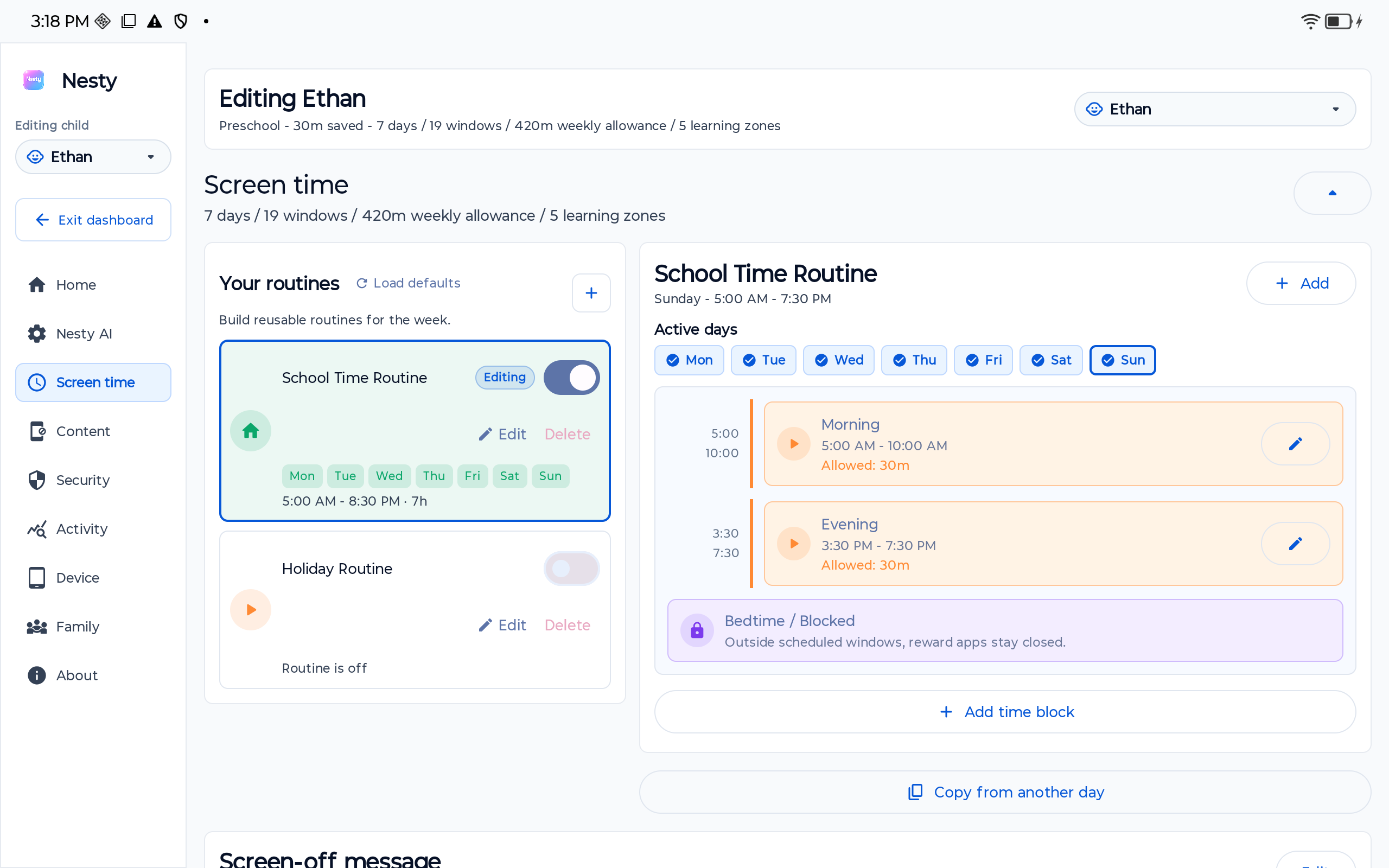
| Screen time and downtime | Screen-time and downtime controls can be set from Android Settings on supported Android 17 devices. | Check daily limit, downtime window, time zone, restart behavior, and whether Family Link shows the same state. | Nesty adds visible daily schedules, quiet hours, chores, and reward windows on supported Android child tablets. |
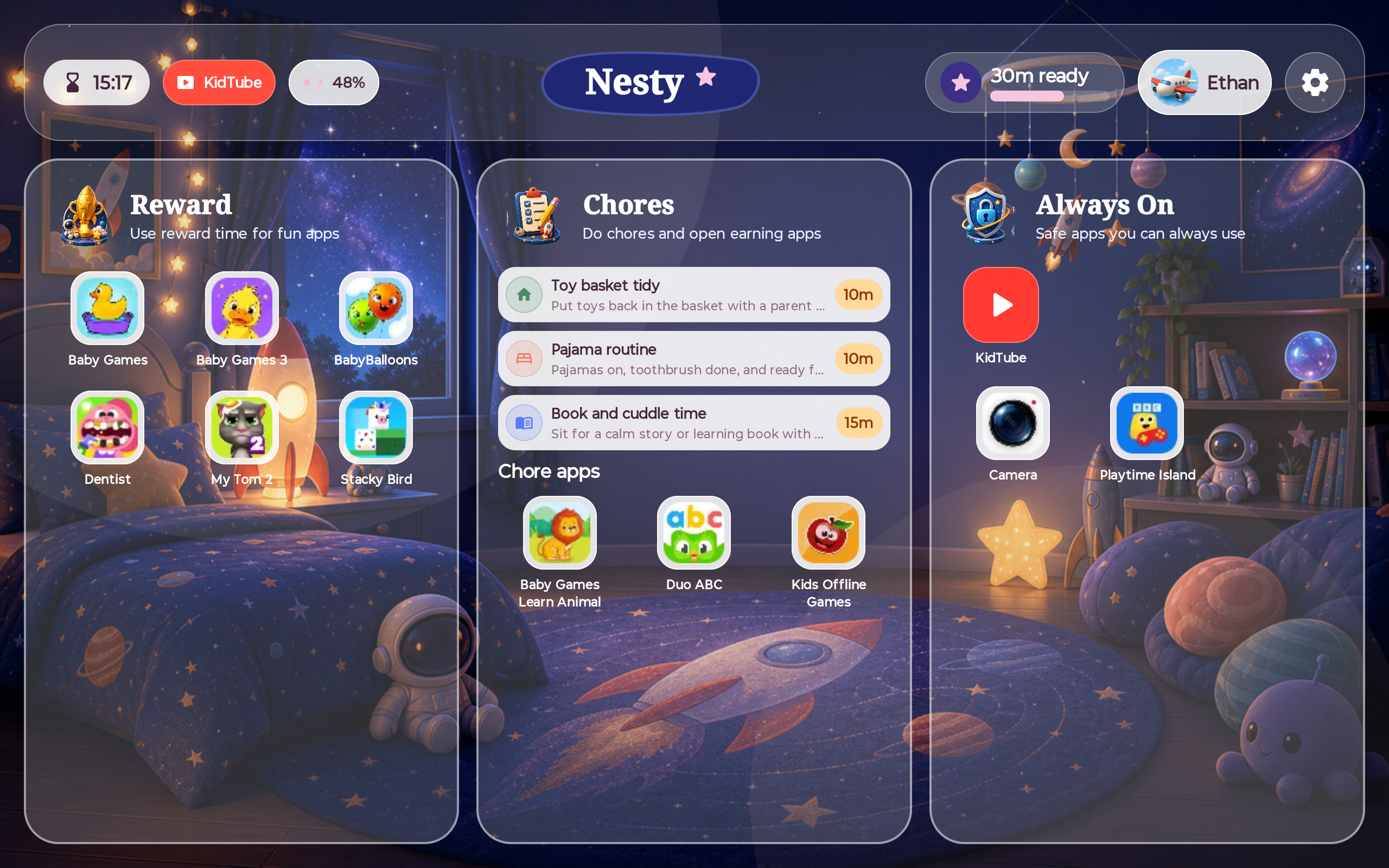
| App limits and blocked apps | Android 17 can make app limits easier to configure on the device itself. | Test system apps, app stores, browsers, YouTube paths, app switching, and any unlimited or allowed app exceptions. | Nesty organizes apps into parent-managed lanes so the child sees what is available now. |
| Web, store, and content filters | Built-in settings help with the local device, but Google-account and Play controls still matter. | Check Play restrictions, browser access, search and web filtering, account age, and signed-in child account. | Nesty helps with app and website rules, KidTube visibility, and testing whether the child route matches the parent rule. |
| PIN and recovery | Google documents PIN setup and recovery for Android's on-device parental-control flow. | Confirm the parent remembers the PIN, recovery account is correct, and the child cannot use recovery paths casually. | Nesty should be added only after the platform recovery path is known and written down. |
| Remote supervision | Android 17 improves local controls; Family Link remains important for parent-managed family supervision. | Check whether remote changes sync, whether schedules apply, and whether the exact child device appears in Family Link. | Nesty is the routine layer to compare against the child tablet after Google and Android state are healthy. |
Official source layer
Start with Google and Android sources, then test your device.
For a trust-first setup, treat the official source layer as the baseline. Android 17 may make controls more visible, but your actual child tablet still decides what works.
Setup order
Use a layered setup instead of stacking products blindly.
Android 17 can make the first layer clearer. Nesty should come after the device, account, and Family Link state are understandable.
Handover test
Prove the Android 17 setup from the child side.
A clean setup is one the child tablet itself can prove, not just one that looks right in a parent app.
Restart the tablet, reconnect Wi-Fi, wait for the child view to settle, and confirm the clock and date are correct.
Open learning apps, always-on apps, calls or messages if allowed, and any apps that should remain available during downtime.
Try the Play Store, browser, regular YouTube, settings changes, account switching, app switching, and reward apps outside their window.
Compare Android Settings, Family Link, Nesty parent dashboard, and the child tablet screen before handing the tablet back.
FAQ
Android 17 parental-control questions.
Short answers for parents checking whether Android 17 changes their child-tablet setup.
Does Android 17 replace Family Link?
No. Android 17 expands built-in on-device controls, while Family Link remains useful for parent-managed Google-account supervision, schedules, app rules, and family settings.
Does every tablet get Android 17 controls?
No. The tablet needs Android 17 and the relevant manufacturer-shipped settings. Check the exact device before relying on it for a child handover.
Where does Nesty fit after Android 17?
Nesty fits as the visible Android child-tablet routine layer: app lanes, KidTube, chores, reward time, schedules, and parent-child state checks.
Should I buy a tablet only because it says Android 17?
No. Also check update life, storage, Family Link behavior, app compatibility, manufacturer controls, and whether you can test the child view before handover.