Hand-me-down tablet guide
Turn an old Android tablet into a child tablet without skipping the checks.
A hand-me-down tablet can be useful, but only if it is still healthy, clean, supervised, and testable. Start with updates, accounts, app paths, and the child view before adding Nesty.
- Update health
- Account cleanup
- Family Link
- Nesty fit
Short answer
An old Android tablet is only child-ready after it proves four things.
The price is already paid, but the setup cost is still real. Treat the tablet as a device you must qualify, not a screen you can simply hand over.
1. Still supported
It can update and run current essentials.
Check Android version, security update date, Play services, storage, battery, Wi-Fi, and whether parental-control features you need are actually available.
2. Clean enough
Old adult data is gone.
Remove previous accounts, photos, messages, downloads, browsers, payment paths, old apps, unknown launchers, and anything the child should not inherit.
3. Supervised
The parent layer is clear.
Use Android controls, Family Link, Google Kids Space where available, or the manufacturer child mode before trusting any extra child-tablet layer.
4. Tested
The child view matches the rule.
Open the tablet as the child, try allowed apps, blocked paths, store, browser, video, settings, reboot, and parent-dashboard sync.
Fit check
Old Android tablet suitability checklist.
If the tablet fails one of these checks, fix that first or choose a different device.
| Check | Good sign | Risk sign | What to do |
|---|---|---|---|
| Android and security updates | The tablet still receives updates or is current enough for the controls you plan to use. | Very old Android version, unknown patch level, or no route to update. | Prefer a newer tablet for a main child device if update support is unclear. |
| Google account state | You can remove old accounts and sign in the intended child account with parent consent. | The tablet is tied to an old account, has unknown recovery details, or mixes adult and child accounts. | Clean account state before setup; reset only when you understand backups and recovery. |
| Built-in controls | Family Link, on-device Android controls, or the tablet's child mode can be configured and tested. | Controls are missing, hidden by manufacturer changes, or cannot be protected from the child. | Do not rely on Nesty or any other app to compensate for a broken platform layer. |
| Storage and performance | There is enough storage for updates, Nesty, learning apps, and normal cache growth. | Updates fail, apps freeze, battery drains quickly, or the tablet is too slow to use calmly. | Clear storage, uninstall old apps, test for a day, or replace the device. |
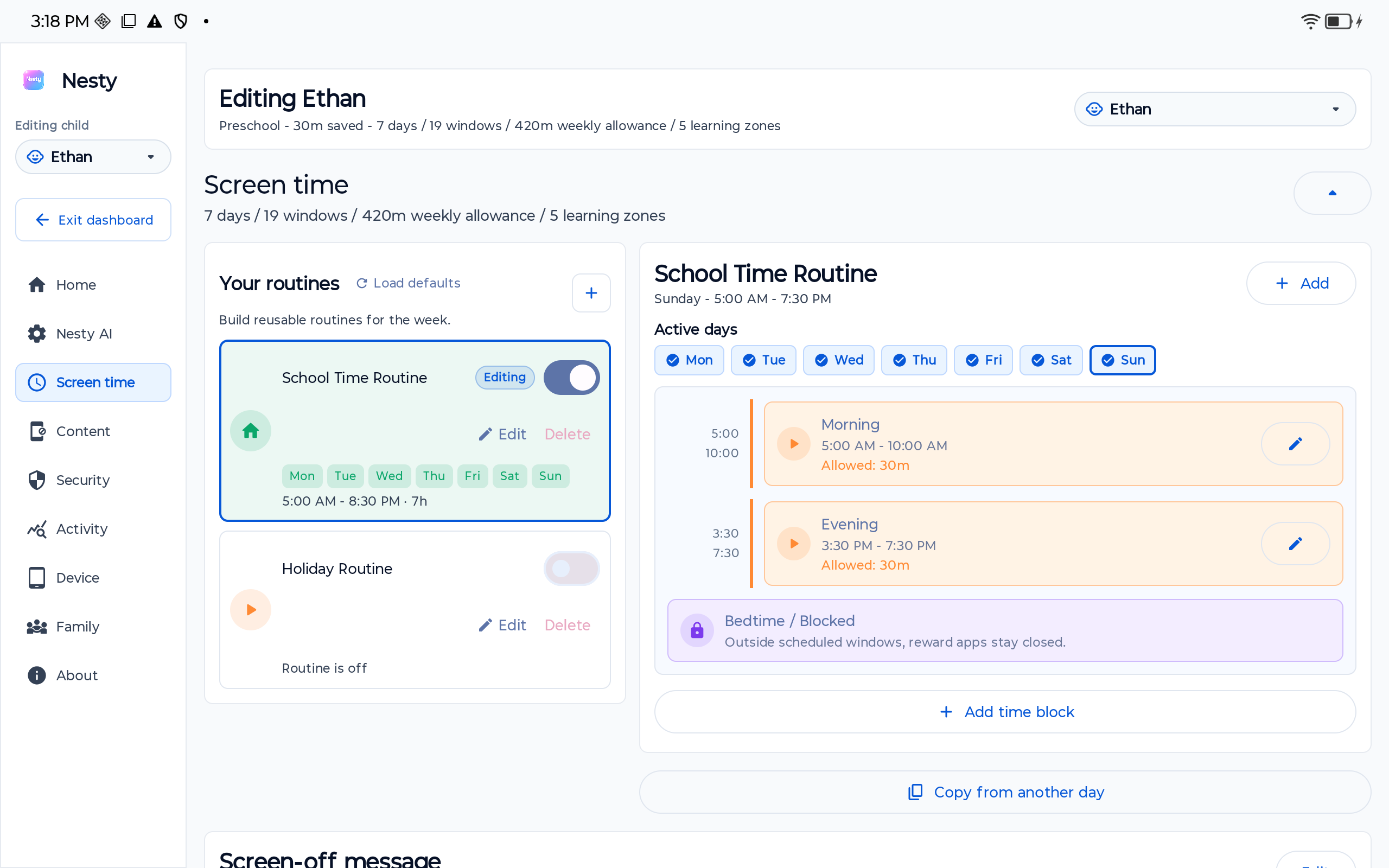
| Child-view proof | After setup, the child sees the intended launcher, apps, limits, and lock behavior. | The parent dashboard says one thing but the tablet shows another. | Check selected child, device pairing, sync time, schedule, app lanes, and reboot behavior. |
Official setup layer
Start with Android and Google controls before adding a child-tablet routine.
Google documents Android parental controls for screen time, daily limits, downtime, app limits, blocked apps, web content filters, app store filters, and Family Link. Google also says Family Link works best for supervised children or teens on Android 7.0 or higher, while Android 5.0 and 6.0 may still be able to apply some settings.
For an already set-up Android device, Google's child-account guidance tells parents to remove existing accounts and delete apps, photos, or other data they do not want the child to access before adding the child account. That advice matters most on a hand-me-down tablet.
Setup sequence
A safer order for repurposing the tablet.
This sequence is deliberately conservative. It helps you find device, account, and data-integrity problems before a child gets attached to the tablet.
Where Nesty fits
Nesty is useful after the tablet itself passes the boring checks.
Nesty should not be used to hide a weak device foundation. If the tablet cannot update, cannot hold a charge, cannot run the required apps, or still has old adult state, fix that before installing a child routine.
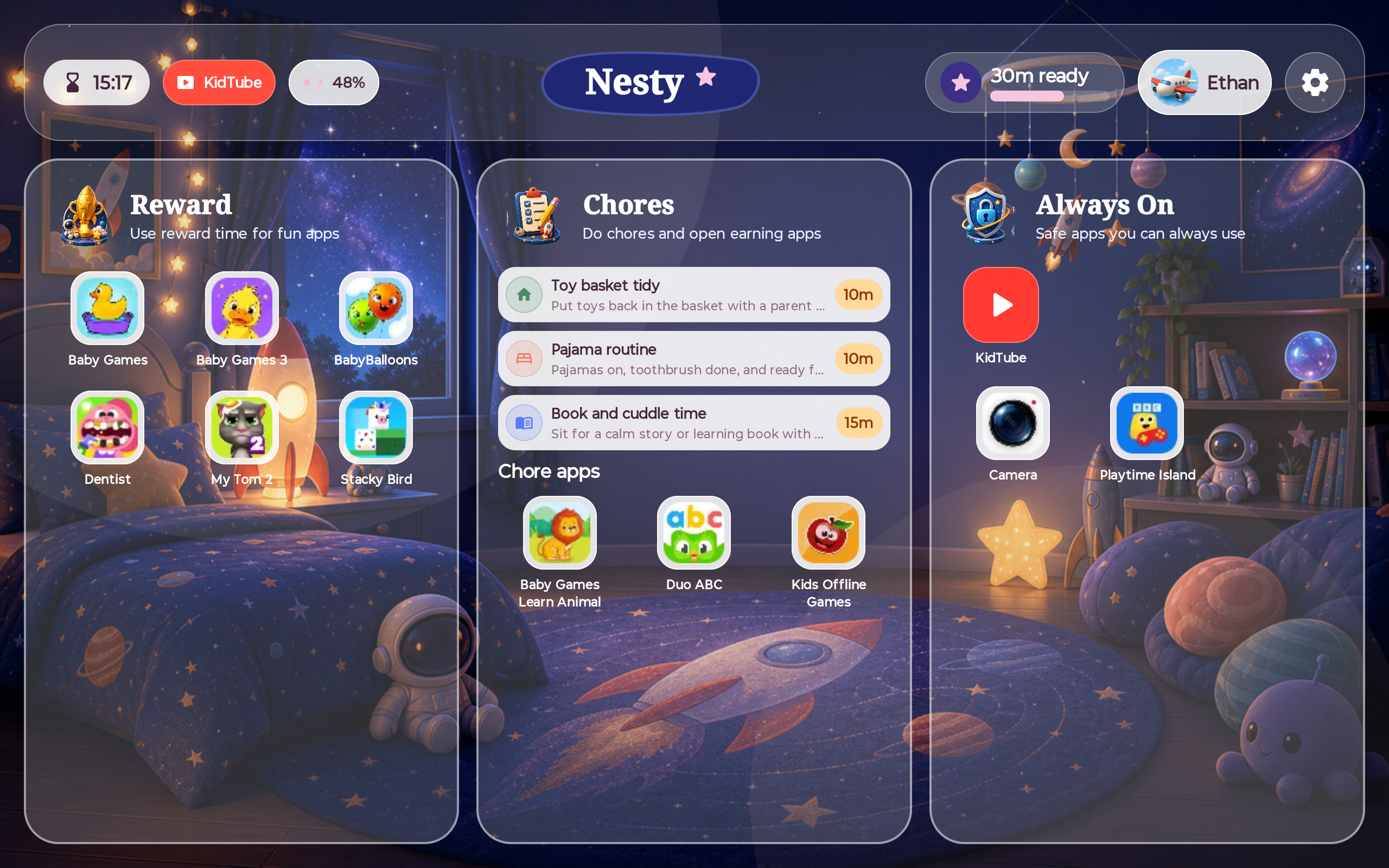
When the device is suitable, Nesty can make the daily routine clearer: always-on tools, learning apps, chore apps, reward apps, blocked apps, KidTube, quiet hours, and a parent dashboard that should agree with the child tablet.
Handover test
Before giving the tablet to the child, test it like the child will use it.
Do this after account setup, after Nesty setup if used, and again after a restart.
Confirm the tablet starts in the intended child experience, not an adult launcher or old profile.
Open always-on apps, learning apps, chore apps, reward apps, KidTube, and anything the child should reach.
Check app store, browser, regular YouTube, settings, account switching, unknown apps, and purchase paths.
Restart the tablet, reconnect it, and compare the child screen with the parent dashboard before handover.
FAQ
Old Android tablet setup questions.
Short answers for parents turning a hand-me-down tablet into a child tablet.
Can I give my child an old Android tablet?
Yes, if it still updates well enough, runs the required apps, can be cleaned of old adult state, and passes the child-view handover test.
Should I factory reset it first?
Often, but not always. Reset is useful when old accounts and apps are messy, but you should first understand backups, account access, and recovery implications.
Does Nesty replace Family Link?
No. Use the Google or Android account layer first. Nesty adds a visible Android child-tablet routine layer when the family needs app lanes, KidTube, chores, rewards, and schedules.