Parent checklist
Android tablet parental controls checklist.
Before a child gets the tablet, prove the account, built-in controls, app paths, screen-time rules, video paths, and child view all agree.
- Account
- Apps
- Screen time
- Handover

Short answer
Do not hand over the tablet until the child view has been tested.
Parent dashboards can look correct while the child tablet still has old accounts, stale app access, a wrong clock, a browser path, or a video path the family did not intend. This checklist is designed to catch those mismatches.
1. Identity
Correct child account.
Confirm the child Google Account, parent account, recovery access, family group, and that no old adult account still controls the tablet.
2. Platform
Built-in controls first.
Use Android settings, Family Link, Google Play restrictions, and Kids Space where supported before adding a child-tablet routine layer.
3. Routine
Visible daily rules.
Decide what is always available, what counts as learning or chores, what becomes reward time, and what remains blocked.
4. Proof
Child-side testing.
Open the tablet like the child will, restart it, test blocked paths, and compare the result with the parent dashboard.
Sources first
Start with official Android and Google controls.
Google's parent controls cover important account and device layers: Family Link, app approvals, Google Play content restrictions, screen time, app limits, schedules, and Android on-device parental controls where supported. Some tablets also support Google Kids Space as the child-facing tablet experience.
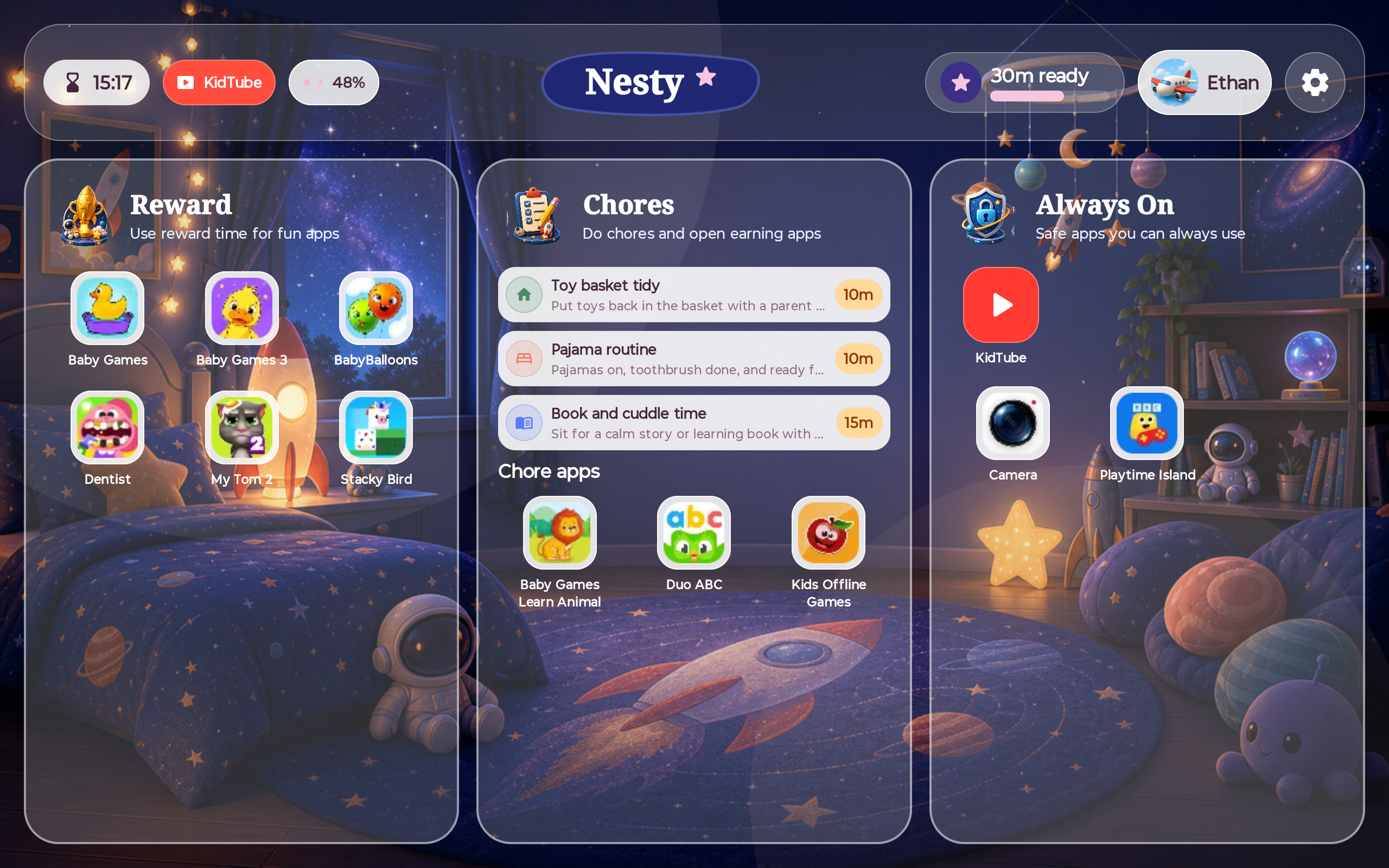
Nesty should be added after this layer is understood, when the family needs a clearer child Android tablet routine with visible lanes, KidTube, chores, rewards, quiet hours, and setup checks.
Checklist
Work through the tablet in this order.
Move slowly through these checks. If one layer is wrong, fix that layer before adding more rules on top.
Handover test
Ten minutes of testing can prevent days of confusion.
Use the tablet like the child will. Do not rely only on a dashboard saying the rule exists.
| Test | Parent should try | Pass condition |
|---|---|---|
| Restart | Restart the tablet, reconnect Wi-Fi, and open the child screen again. | The same child account, rules, and visible dashboard return without manual rescue. |
| Allowed apps | Open always-on, learning, chore, reward, and utility apps during the correct time window. | Allowed apps open as expected and the child understands why they are available. |
| Blocked paths | Try app store, browser, settings, regular YouTube, unknown apps, and old shortcuts. | Blocked or approval-required paths behave the way the parent intended. |
| Time and sync | Check date, time zone, downtime, app limits, last sync, network state, and parent dashboard state. | The tablet clock and rule state agree with the parent view before handover. |
| Recovery | Confirm parent access, recovery email, support route, and what to do if the child tablet is stuck. | The parent knows the recovery path before the child depends on the tablet. |
Printable copy
Tick these before the tablet goes back to the child.
Use this as a quick household handover sheet. If a check fails, fix that layer and test again before adding more controls.
Where Nesty fits
Add Nesty when the family needs the child screen to explain the rules.
Google and Android controls are important. Nesty adds a child-visible Android tablet routine: app lanes, KidTube, chores, reward time, quiet hours, and a parent dashboard that can be compared with the tablet state.
That makes Nesty most useful after the account and platform setup is sane, especially on a parent-managed Android tablet that needs calmer handover and clearer daily boundaries.
FAQ
Android tablet checklist questions.
Short answers for parents who want a safer handover, not a pile of settings.
What should I check first?
Start with the child account, parent recovery access, Family Link or Android controls, and Google Play restrictions. Those decide who owns the tablet rules.
When should I add Nesty?
Add Nesty when the Android child tablet needs visible routines: app lanes, KidTube, chores, rewards, quiet hours, and parent-dashboard agreement.
How do I know the setup really works?
Restart the tablet, open allowed and blocked paths, check time and sync, and compare the child screen with the parent dashboard before handover.