Troubleshooting guide
Family Link not working on a child Android tablet? Check the setup before changing the rule.
When parental controls look wrong, the real issue is often a stale child profile, offline tablet, unsupported feature, app-limit exception, schedule mismatch, or a child screen that no longer matches the parent dashboard.
- Child profile
- Signed-in device
- Schedules
- Sync state
First checks
Do these before reinstalling apps or changing every limit.
Most parental-control confusion is a mismatch between the rule you think is active and the exact child account, device, schedule, or app state currently in use.
1. Child profile
Confirm the right child is selected.
In the parent app, check the selected child profile, family group, and the device attached to that child. Do not assume a sibling or old profile is harmless.
2. Device support
Check whether the feature can apply.
Google says Family Link supervision works on Android 5.0 and up, but some app-limit and schedule features need Android 7.0 and up.
3. Online and synced
Make the tablet prove it has the rule.
Wake the tablet, connect Wi-Fi, open the child view, wait for sync, and compare the parent dashboard with the actual screen the child sees.
4. Time and schedule
Check the clock, downtime, and school time.
Wrong date/time, a temporary schedule change, bonus time, or unlimited apps can make a rule look broken when the exception is expected.
Mismatch table
What the symptom usually points to.
Use the table to isolate account, platform, schedule, app, and device-state issues before changing product settings.
| Symptom | Likely checks | Why it matters |
|---|---|---|
| Tablet does not lock when expected | Selected child, signed-in device, daily limit, downtime, bonus time, network state, and date/time. | Google documents daily limits, downtime, lock/unlock, bonus time, and parent access code paths separately. |
| An app still opens after a limit | Android version, app-limit support, system app status, unlimited-time app state, and whether the app is installed on another child device. | Google says system apps cannot have app limits, and app limits apply across Android and ChromeOS devices where supported. |
| Allowed apps disappear during downtime | Unlimited app settings, School Time or Downtime schedule, manual lock state, and lock-screen settings. | Google documents specific exceptions for unlimited apps, schedules, and manual lock behavior. |
| Child account cannot sign in | Android version, parent account verification, existing accounts, password errors, reset state, and device compatibility. | Google's child sign-in guidance has separate paths for new setup, later sign-in, reset issues, and account cleanup. |
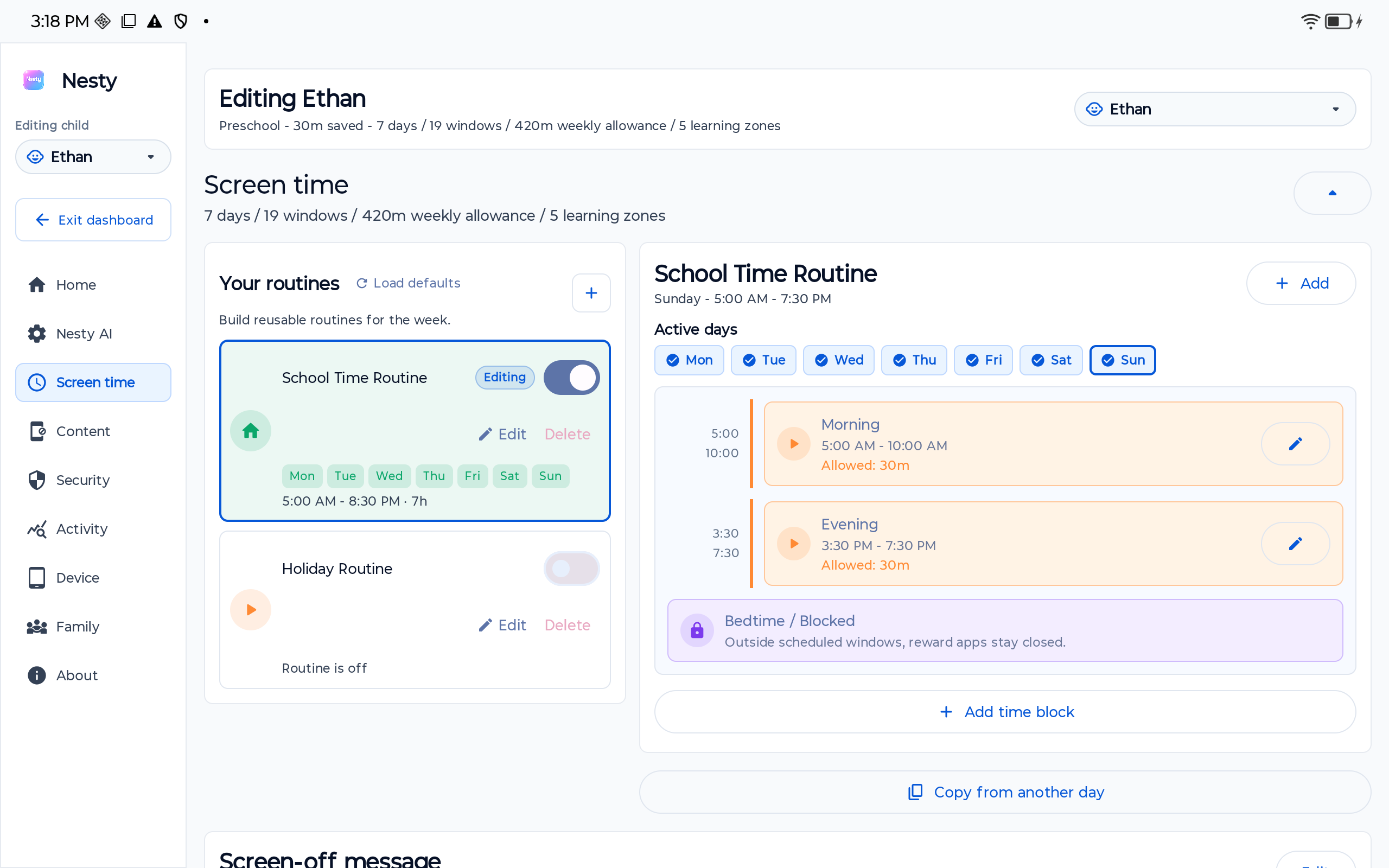
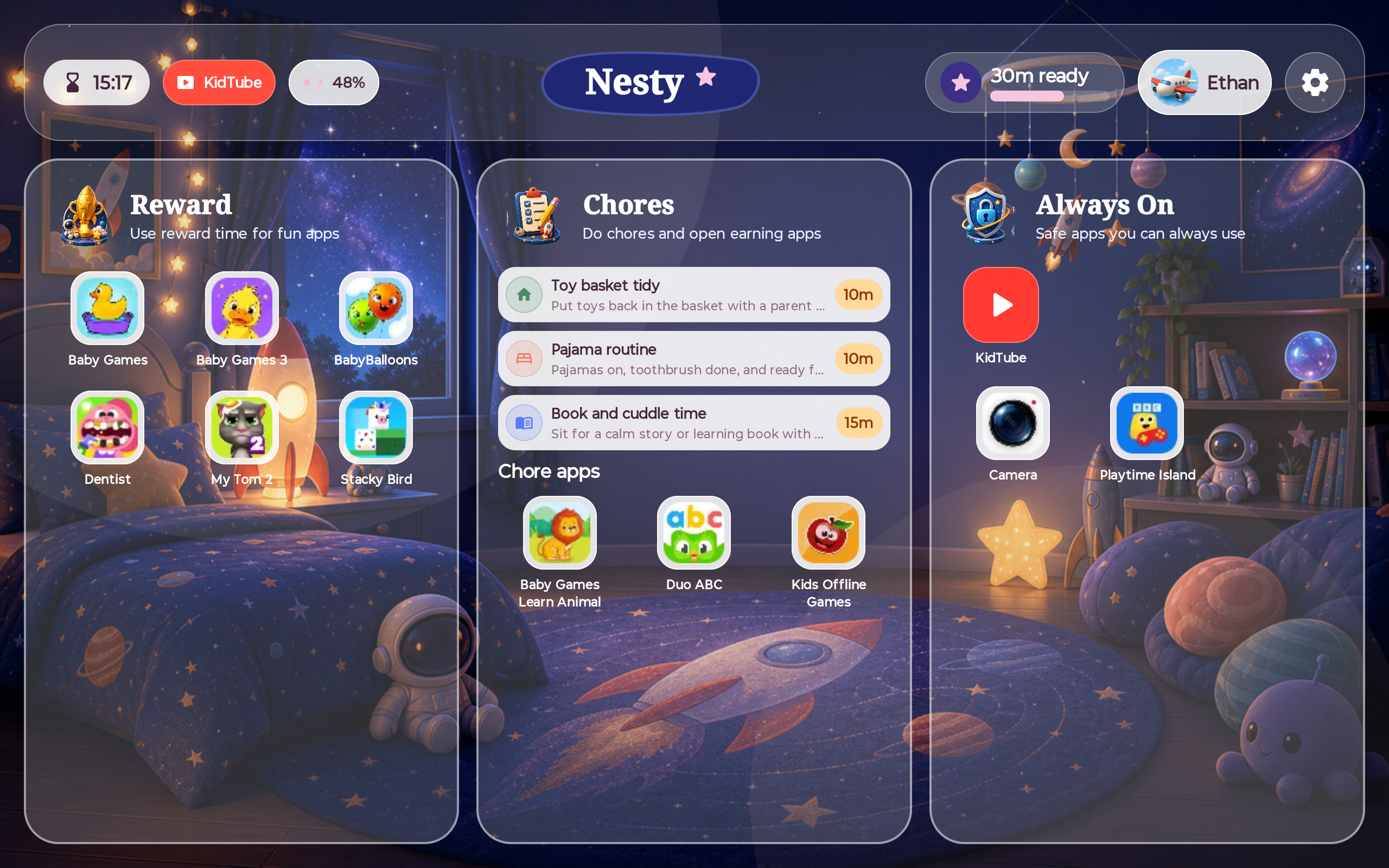
| Nesty and the tablet disagree | Selected family, child profile, paired tablet, app lane, schedule, reward state, KidTube list, sync time, permissions, battery, and reboot behavior. | Nesty is only trustworthy when the parent dashboard and child tablet agree on the actual visible state. |
Official source layer
Use Google's own limits before assuming the tablet is broken.
Google's Family Link help separates screen time, app limits, schedules, parent access code, child sign-in, and device supervision. That split matters when a tablet does not behave the way the parent expected.
Android also now presents built-in parental controls as an on-device option, alongside Family Link for broader parent-managed supervision. On Samsung tablets, Samsung's support route also starts from device settings and Family Link setup on supported One UI devices.
Repair order
A practical sequence for a messy child tablet.
Move from platform state to product state. That keeps the fix cleaner and avoids punishing the child for a stale setup.
Nesty checks
When Nesty is involved, compare state instead of guessing.
Nesty is designed for parent-managed Android child tablets where the child should see a controlled daily routine. It does not replace Family Link's account supervision or Android's platform controls.
If Nesty and the child tablet disagree, check the parent account, family, child profile, selected tablet, app lane assignment, website rule, KidTube setting, schedule, reward state, sync time, accessibility state, command result, network state, and the child's actual tablet screen.
Handover test
Prove the fix from the child side.
After changing anything, run the same short test. It is the fastest way to catch stale state and false confidence.
Restart the tablet, reconnect Wi-Fi, and wait for the child screen to settle before judging the rule.
Open apps that should be allowed now, including any unlimited, school, learning, or always-on apps.
Try the store, browser, regular YouTube, settings, app switching, and reward apps outside their window.
Compare parent dashboard state, child tablet state, current time, schedule window, and last sync time before handing the tablet back.
FAQ
Family Link and child tablet troubleshooting questions.
Short answers for parents when rules and the child device do not agree.
Why does Family Link look like it is not working?
Common causes include the wrong child profile, wrong signed-in device, unsupported Android feature, stale sync, offline state, date and time mismatch, app-limit exceptions, schedule exceptions, or another control layer changing the same behavior.
Should I change the rule or troubleshoot first?
Troubleshoot first. Compare selected child, signed-in device, schedule, app limit, network state, date/time, and the child tablet screen before changing rules.
Does Nesty replace Family Link troubleshooting?
No. Family Link and Android controls remain the account and platform layer. Nesty is useful when a supported Android child tablet also needs visible app lanes, KidTube, chores, rewards, schedules, and parent-child state agreement.